Keep a character or product consistent across scenes
Pin down what must never change in a character sheet, then use a fixed block and reference images to keep the same look in every scene.
About 14 min readingAs of Oct 2026
Lesson guide · goals & preparation
By the end of this guide
- Build a sheet that separates what stays fixed from what changes, for a character or a product.
- Condense the sheet into a fixed block and use it with reference images to keep the same look across scenes.
- Compare results with the sheet, fix only what's wrong, and finish products, logos and text in an image editor.

Who this is for
- Designers who need a character or mascot in a series of scenes
- Marketers who need the same product in many different settings
What you need
- Knowing the fixed-block method from "Make a mood board in ten minutes" helps.
- An image generator that accepts reference images
- A chat assistant that can read images, and an image editor such as Photoshop
This lesson’s terms, in plain language
Read the short meanings here. Open a term for a fuller explanation and example.
- prompt
- The instructions you give an AI.
This reading lesson explains how to use external AI tools. Read from theory to the workflow, examples and explanations, or use the contents to jump to a section.
1 / 4
Theory
Understand what to ask AI to do, how to ask, and the ideas behind the workflow.
Make a sheet of what's fixed and what changes
The raincoat matches across three pictures, but the cheek mark changes sides. It is easy to miss until the images are compared. Puff is a fictional editorial mascot; its sheet and review tables are practice materials.
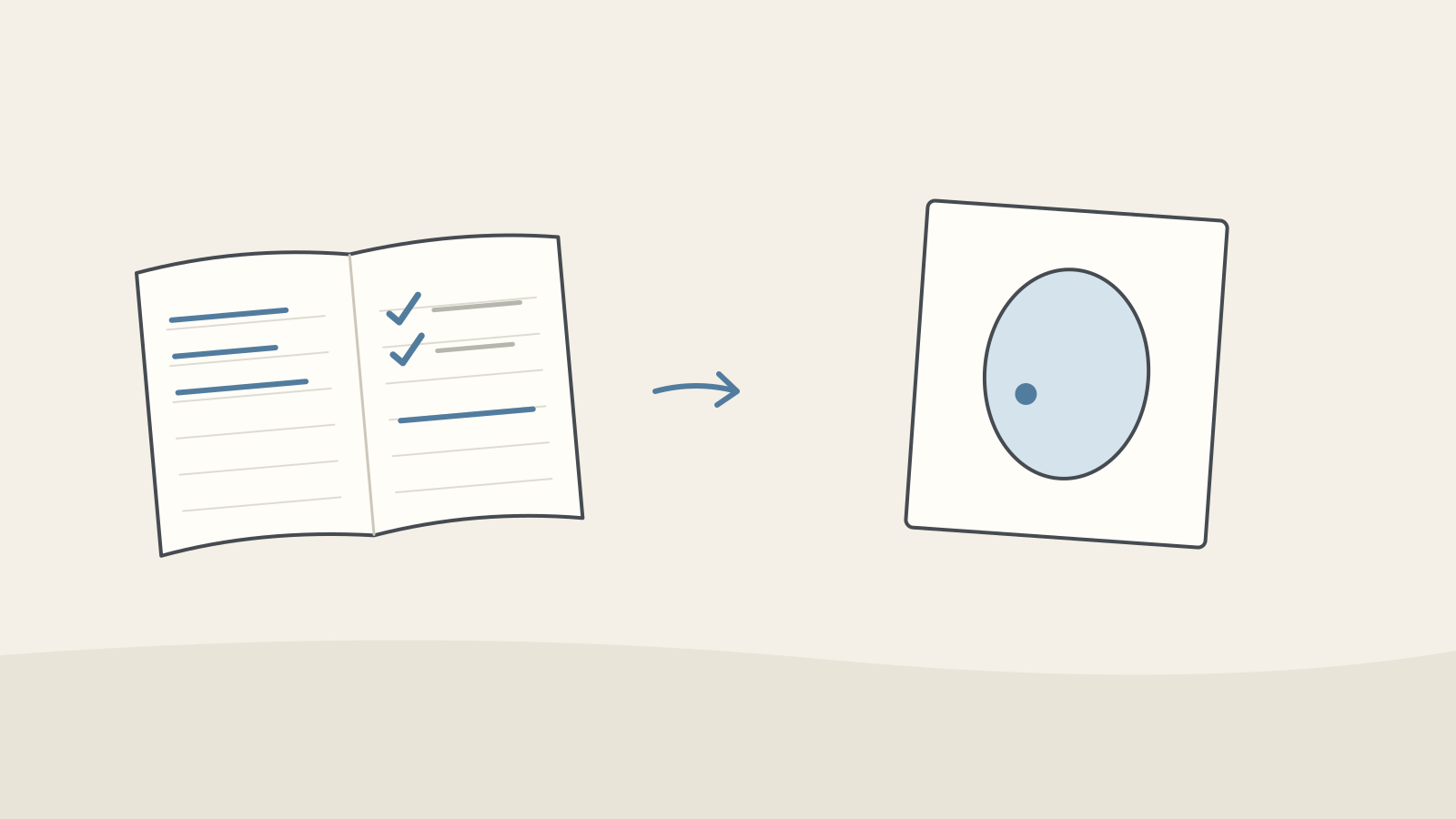
Figure: A reference notebook with marked traits beside scene cards · AI Ping So start with a character sheet. Separate what must never change — shape, proportions, colors, outfit, distinctive marks — from what changes every time: scene, pose, expression, light. Give colors as hex codes, and say whose left and right you mean, so you have something to compare against later.
Character sheet for Puff, the mascot of a fictional weather app (example) Type Item Details Fixed Shape Round, cloud-shaped body, two short legs, two small half-circle arms Fixed Proportions Width to height (legs included) 5:4; legs one-fifth of the height Fixed Colors Body #F8FAFC, cheeks #FDA4AF, raincoat #FACC15, boots #1E3A8A Fixed Outfit Hoodless yellow raincoat, navy boots Fixed Marks Two tall black oval eyes; a navy teardrop mark under the cheek on the character’s own right Changes Scene and props Set each time (e.g. a bus stop, an umbrella) Changes Pose and expression Set each time Changes Light and time of day Set each time Check it
- Could a colleague draw the same character from the fixed rows alone? Replace anything open to interpretation, like "cute eyes," with a shape and a position.
2 / 4
Step-by-step use
Learn what to prepare, how to request help and how to revise the result through examples and explanations.
Condense the sheet into one fixed block
Write every prompt as a fixed block plus a changing block. The fixed block is the sheet's fixed rows condensed into one paragraph, pasted in unchanged every time. The changing block holds only the scene, the pose and expression, and the light, as in the table below.
A chat assistant can condense the sheet for you. Give it a length limit, and the fixed block stays short enough to keep separate from the changing part.
Changing blocks that follow the fixed block (example) Scene Pose and expression Light A bus stop in the rain Holding an umbrella, on tiptoe, smiling Soft light on an overcast afternoon A windy hill Gripping a kite string with both arms, surprised Bright sunshine on a clear morning A snowy alley Looking up at the snowflakes, mouth open Warm glow of streetlights in the evening Example prompt Condense only the 'Fixed' rows of the character sheet below into one paragraph I can paste into every image prompt. Keep it to 50 words or fewer, keep the hex codes as they are, and leave out the 'Changes' rows. [Paste the character sheet]
Worked example & explanation Round, cloud-shaped mascot; width to height 5:4; two short legs (one-fifth of height) and two small half-circle arms. Body #F8FAFC, cheeks #FDA4AF, hoodless yellow raincoat #FACC15, navy boots #1E3A8A. Two tall black oval eyes; navy teardrop mark under the cheek on the character’s own right.
Check it
- Check length and omissions. Do not drop color codes or the body-relative landmark just to meet a length limit.
- Make sure all four hex codes and the position of the teardrop mark are there, and that nothing from the 'Changes' rows — scene, pose, expression, light — slipped in.
Make reference images first, then attach them
Use the fixed block to make one full-body front view and one three-quarter view (turned 45 degrees), each on a plain background. Generate several and pick the ones that match the sheet best as your reference images.
Supply an approved reference where supported. A style reference may guide palette and texture, while a composition reference guides arrangement; neither is automatically an identity lock. Check the selected model’s current documentation and version any change to the reference.
Example prompt [Paste the fixed block] Full body, standing straight and facing forward, plain light grey background, soft even lighting
Check it
- Check the reference images against the sheet, item by item. Anything wrong here spreads to every later scene, so regenerate until they match.
- Keep the reference images in one place, with the date and a version number in each file name.
Compare with the sheet and fix only what's off
When a scene comes back, compare it with the sheet. A chat assistant that can read images will spot differences quickly if you give it the image and the sheet together — but it can miss things or misread them, so do the final check yourself.
If only one or two things are off, fix just those instead of regenerating the whole image, which can change the parts that were right. Ask in the conversation to change only that part and keep everything else, or use an editor feature such as generative fill, where you paint over an area and regenerate only that.
Example prompt List where the attached image differs from the character sheet below, as a table. Use the columns item, sheet, image and fix, in that order, and leave out anything that matches the sheet. [Paste the character sheet]
Worked example & explanation The table translates three invented defects into review notes. It is not a model analysis of an actual image.
For something that's only in the wrong place, like the mark, try: "In this image, remove only the teardrop mark and draw the same navy teardrop mark under the cheek on the character’s own right. Keep everything else exactly the same."
Practice comparison of invented defects against the sheet Item Sheet Image Fix Raincoat color Yellow #FACC15 Yellow leaning orange Correct only the raincoat color in an editor Teardrop mark Under the cheek on the character’s own right Under the cheek on the character’s own left Remove it and redraw it under the character’s own right cheek Arms Two small half-circles Arms with fingers Paint over the arms and regenerate only them Check it
- Look again at each difference yourself. For colors, a value sampled with your editor's eyedropper beats the assistant's estimate.
- After a partial edit, zoom in around the fix to check for awkward edges or anything else that changed.
Start products from a real photo; add logos and text by hand
Products are stricter than characters: a slightly different bottle shape or label makes it a different product. Rather than generating the product, give the model a real product photo and ask it to change only the background, props and light. The more precisely you describe what must stay (shape, label, colors), the more likely it is to survive.
Some models render logos and text fairly well, but matching the exact typeface and shape is hard. Add the original logo file and the text in your editor at the end, and match the colors to your brand values there too.
A background-only request does not prove that product pixels survived unchanged. When exact representation is required, preserve the approved product region on a separate layer and composite it over the background. “Keep it unchanged” is a request, not a guarantee.
Who does what in a product scene Element How Why Product shape and label Use the real product photo as is Generated details tend to drift Background, props, light Give the photo and describe only what should change The part a generator handles well Logo and text Add the original files in your editor Generators may not match the typeface and shape exactly Final colors Match brand color values in your editor Colors in generated results tend to shift slightly Example prompt Keep the tumbler in the attached photo exactly as it is — don't change its shape, label or colors. Change only the background to a café window on a rainy day, and make the shadows match the soft, overcast light coming through the window.
Check it
- Put the product in the final image next to the original photo and zoom in to compare the shape, label and lid color.
- Overlay the logo and text on the original files to check that the shapes match.
3 / 4
Check & explain
Think about what you would ask AI, then read the explanation. Written submissions and external AI use are optional.
This is a learning check, not a test you must pass. Use the explanations to understand the ideas.
Q1Should a mark seen on the left in front view stay screen-left in profile?
Write your thoughts (optional)
Your writing is not sent anywhere. It disappears when you leave or reload this page, so copy anything you want to keep.
Read the answer and explanation
Use the character’s own right cheek as the landmark. Rotation changes its screen position and may hide it; screen-left alone is not a valid rule.
This is your own review, not an automatic score.
Q2A coat-color edit also changes the boots. What needs review?
Write your thoughts (optional)
Your writing is not sent anywhere. It disappears when you leave or reload this page, so copy anything you want to keep.
Read the answer and explanation
Recheck every fixed attribute against the approved version. A local edit request does not guarantee preservation of the rest, so the boot change must also be repaired.
This is your own review, not an automatic score.
Q3A bent pose does not have a 5:4 bounding box. Is it automatically wrong?
Write your thoughts (optional)
Your writing is not sent anywhere. It disappears when you leave or reload this page, so copy anything you want to keep.
Read the answer and explanation
No. The 5:4 value was invented for the reference pose. Evaluate anatomy and stable traits with pose and perspective in mind.
This is your own review, not an automatic score.
Common mistakes
- Rewriting or tweaking the character description for every scene
- Regenerating the whole image to fix one detail, and losing the parts that were right
- Putting a logo or text drawn by the generator straight into the final artwork
Your learning record
Completion is optional. Mark this lesson when you feel ready, or move to the next lesson without marking it.
Completion is saved in this browser.
4 / 4
Apply to your work
Consider how new material changes the workflow and checking criteria. Trying an external AI tool is optional.
Try it: review three scenes as one set
Sketch front, profile and over-the-shoulder views. Apply the mark to the character’s own right cheek: it appears on the viewer’s left in front view and may be hidden in profile. Screen-left is not a stable body landmark.
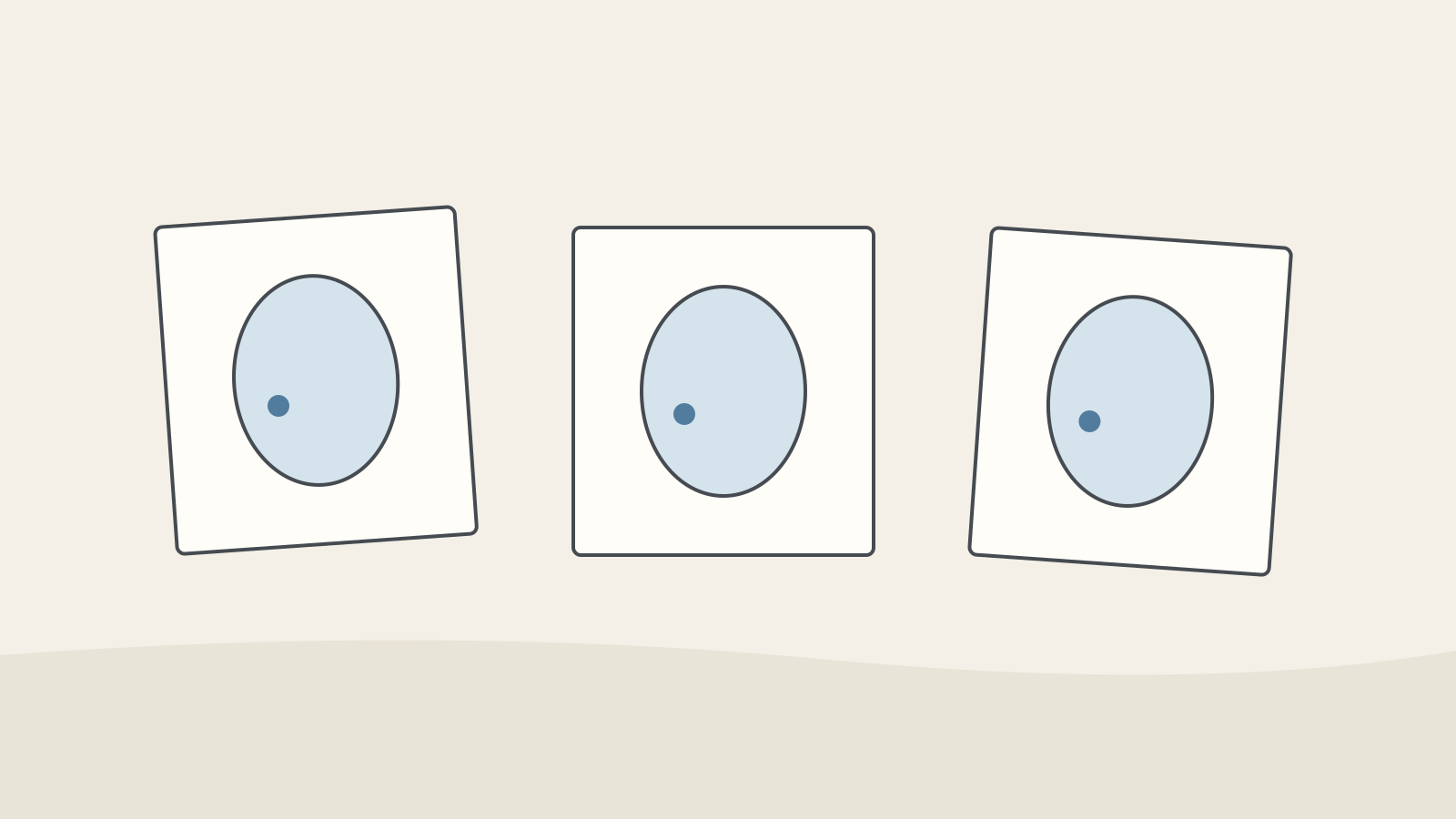
Figure: Three scene cards compared using a shared landmark · AI Ping The fictional 5:4 ratio describes the reference pose. Applying that bounding-box ratio to a foreshortened or bent pose can incorrectly flag a valid drawing. Compare anatomy and component relationships appropriate to the pose.
Create columns for scene, preserved traits, changed traits, decision and repair. Separate taste from defects. After a local repair, recheck the coat, boots and eyes as well. Archive the full set with the reference-sheet version.
Write a note (optional)
Use this only if you want to record a prompt or your understanding. This is a notebook, not a connected AI assistant.
Your writing is not sent anywhere. It disappears when you leave or reload this page, so copy anything you want to keep.
References
- Nano Banana image generation — Google AI for Developers
- Use generative fill — Adobe Help Center
- Reference images for styling — Adobe Help Center