Make a mood board in ten minutes
Turn a short brief into visual keywords, nine images in one consistent style and a five-color palette, then lay them out as a one-page mood board.
12 minAs of Oct 2026
By the end of this guide
- Turn brief words like "warm" into three to five visual keywords you could actually photograph.
- Keep one style block fixed and swap only the subject to get nine images that sit together on one board.
- Get a five-color palette with roles, check text contrast, and know what to label before you share.
Who this is for
- Designers who need to show a visual direction before a kickoff, fast
- Marketers who find it hard to put the look they want into words
What you need
- Reading "Image prompt basics for designers" first will help.
- An image generator and a chat assistant (free versions often limit how many images you can make)
- Somewhere to lay out images, such as Figma or PowerPoint — whatever you already use
Step by step
Turn the brief into visible keywords
A mood board pins down a look with images instead of words. But feed brief adjectives like "warm" and "honest" straight into an image generator and you tend to get something you've seen a hundred times.
So first ask a chat assistant to turn the brief into visual keywords. Have it say what you'd actually see in a photo for each one, and those lines become the subjects of your prompts in the next step.
Example prompt I'm making a mood board for a neighborhood bakery rebrand. Brief: a bakery that has been on the same corner for 15 years. It opens at 7 a.m., and sourdough and sweet red bean buns are the bestsellers. Most customers are regulars from the area. The feel: warm, honest, like a place you've been going to for years Turn this brief into four visual keywords, as a table. For each, write one line on what you'd actually see in a photo. Don't use any brand or artist names.
Example AI reply Here is the brief translated into things a camera could capture.
Visual keywords the assistant returned (example) Keyword What you'd see in the photo Early-morning light Low yellow sunlight through a window, long shadows Traces of hands Floury hands, buns shaped slightly differently by hand Well-worn tools A knife-marked wooden board, plain cotton cloth, a well-used enamel bowl Fresh from the oven Sourdough with a cracked crust, steam rising from a cut slice Check it
- For each keyword, ask: could I photograph this? If something like "honesty" is left over, ask for it again as a visible scene.
Fix the style, swap only the subject
Images on one board need similar light and color to read as a set. Write one fixed block for style, light and color, paste it in unchanged every time, and change only the subject.
It's the same idea as changing one slot at a time in the previous guide. Take two or three subjects from each of the four keywords and you'll have nine in no time. Results vary from run to run, so make a few per subject and keep the closest.
If they're going into a grid, match the aspect ratio too (square, say). Many tools set the ratio in their settings rather than in the prompt.
Nine prompts: the fixed block stays, only the subject changes # Keyword Subject (the part you change) 1 Early-morning light A sourdough loaf on a windowsill shelf 2 Early-morning light The empty wooden floor of the bakery just after opening 3 Early-morning light Bread behind a steamed-up display case 4 Traces of hands Floury hands folding dough 5 Traces of hands A tray of red bean buns, each a slightly different shape 6 Well-worn tools An old wooden board covered in knife marks 7 Well-worn tools Proofing baskets under plain cotton cloth 8 Fresh from the oven Steam rising from a sourdough loaf cut in half 9 Fresh from the oven Fresh loaves in a brown paper bag Example prompt Style (fixed): film photo look, light grain, low warm early-morning sunlight, muted cream and wheat tones, shallow depth of field Subject: a sourdough loaf on a windowsill shelf
Check it
- Put all nine side by side. If one stands out in color, first check that its fixed block wasn't changed.
- Keep the fixed block in a note and paste it in. Retype it each time and the words start to drift.
Get a five-color palette and check text contrast
Once the images are in, settle on five colors for the board. Give a chat assistant your keywords and ask for a hex code and a role (background, body text, accent and so on) for each. Roles make it much easier to carry the palette into real design work later.
If any palette color will be used for text, check its contrast against the background. The Web Content Accessibility Guidelines (WCAG) ask for at least 4.5:1 for body text and 3:1 for large text (generally 18 pt, or 14 pt bold).
Example prompt Suggest a five-color palette for the mood board, based on these visual keywords. Keywords: early-morning light, traces of hands, well-worn tools, fresh from the oven Give me a table with a color name, hex code and role (background, body text, accent and so on). The body text color needs a contrast ratio of at least 4.5:1 against the background.
Example AI reply I built this around the colors of flour and baked crust. Body text is meant to be dark brown on the cream background — please confirm the contrast with a checker.
The palette the assistant suggested (example) Color Hex code Role Cream #F7F1E6 Background Wheat #D9B77E Secondary surface (cards, dividers) Crust #B5643C Accent (headings, icons) Olive #6B7A3F Highlight (small details) Espresso #3B2A20 Body text Check it
- Worked out with the WCAG formula, body text #3B2A20 on #F7F1E6 comes to about 12.1:1, well over the bar. The accent #B5643C is about 3.8:1 on the same background, so keep it to large headings; wheat #D9B77E is about 1.7:1, so don't use it for text.
- Don't take the assistant's word for contrast — put both hex codes into a contrast checker. Thresholds aren't rounded, so 4.499:1 does not meet 4.5:1.
- Set the palette beside colors sampled from your images with an eyedropper, and swap any color that fights the board's mood for one sampled from the images.
Lay out a 3×3 grid, then cut
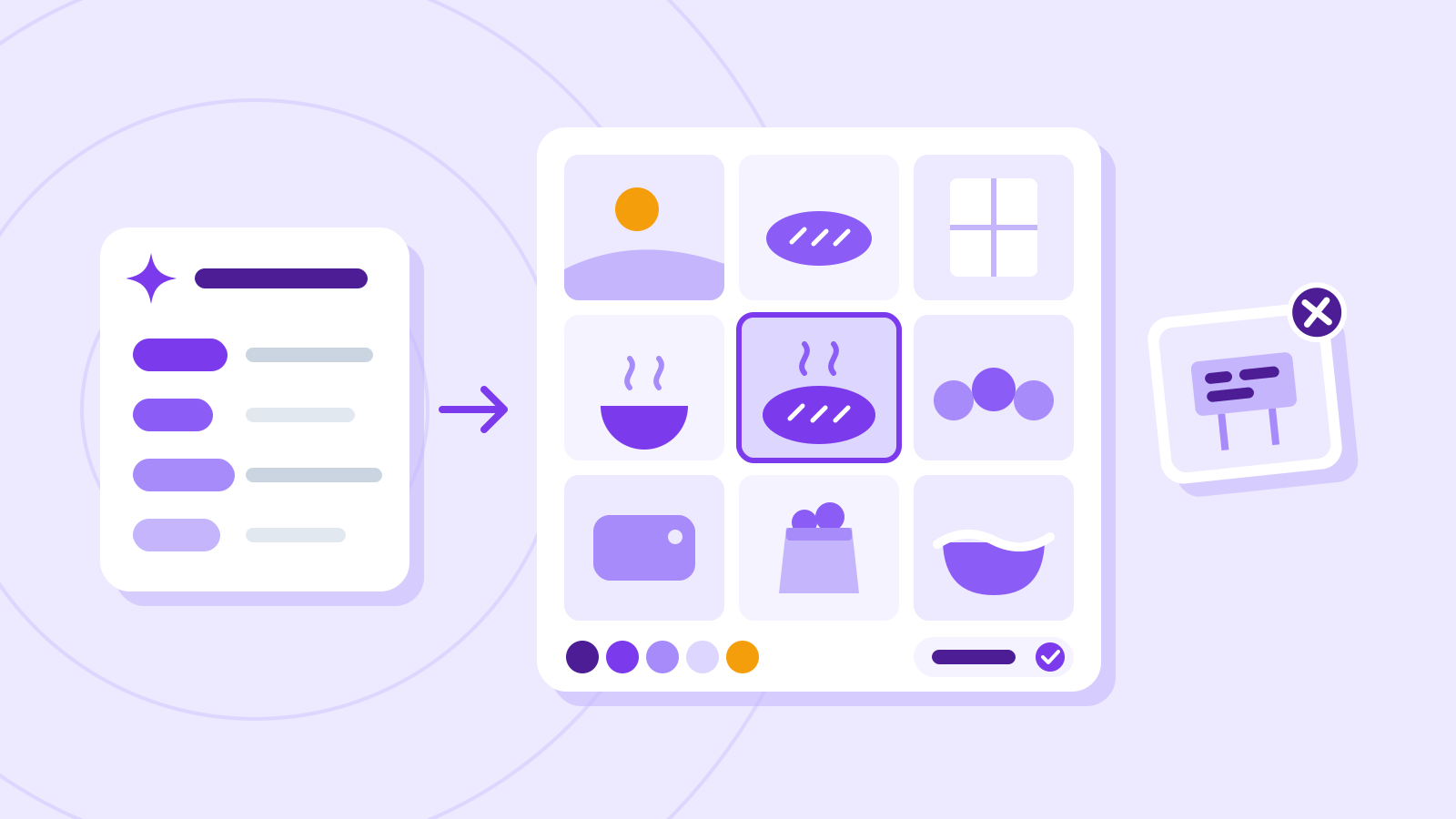
Put your picks in a 3×3 grid and add the palette underneath as color chips. The center square goes to the image that shows the brief best.
Then cut whatever stands apart. Note in one line which keyword each remaining image shows — it makes the board easy to explain in a meeting, and the notes double as prompts for the next round.
Some image tools come with a board built in. Adobe's Firefly Boards, for example, lets you upload or generate images, gather them on one board and share it with your team. Features and the number of boards depend on your plan.
What to cut from the board Image Why cut it Instead One whose colors stand apart from the rest The board stops reading as a set Check the fixed block and regenerate Garbled text or logo-like marks It could be mistaken for another brand Regenerate with no signs or packaging in view Odd fingers or warped bowls The meeting turns into a talk about glitches Swap in another take of the same subject Lovely, but matches none of the keywords It blurs the direction Make one more for your weakest keyword Check it
- For each of the nine, can you say in one line which keyword it shows? If not, it's probably better cut.
Label and check before you share
A mood board is a reference for agreeing on direction, not finished artwork. A note on the board — "AI-generated reference images, not final design" — stops people from using them as is or mistaking them for photos of the real shop.
Describe style through technique and medium, like "film photo" or "watercolor," rather than a real artist's name. Name an artist or another brand and the results tend to resemble that work or brand. What you may do with generated images depends on each service's terms; "Copyright and commercial-use checklist for generated images" covers this in detail.
Check it
- Does the board say the images are AI-generated references?
- Are your prompts free of real artists', other brands' and real people's names?
- Have you read your image service's terms on how generated images may be used?
Common mistakes
- Pasting brief adjectives like "warm" or "emotional" straight into the prompt
- Rewriting the style words for every image, so the board never reads as a set
- Using the assistant's colors for text without checking contrast
References
- Understanding Success Criterion 1.4.3: Contrast (Minimum) — W3C Web Accessibility Initiative (WAI)
- Writing effective text prompts — Adobe Help Center
- About Firefly Boards — Adobe Help Center