Image prompt basics for designers
Write a mug-image brief, compare controlled variations, and inspect the design at its delivery size.
About 14 min readingAs of Oct 2026
Lesson guide · goals & preparation
By the end of this guide
- Write prompts in four slots — subject, style, composition, light — to get close to the image you want, fast.
- Multiply concepts by changing one element at a time, and keep track of what changed the result.
- Specify brand colors and things to leave out, and know what to check before commercial use.
Who this is for
- Anyone who has tried image generators but can't get the result they want
- Designers who need many mood boards and concepts, fast
What you need
- Paper and a pencil or a basic image editor
- For optional generation: an approved image tool and a usage limit
This lesson’s terms, in plain language
Read the short meanings here. Open a term for a fuller explanation and example.
This reading lesson explains how to use external AI tools. Read from theory to the workflow, examples and explanations, or use the contents to jump to a section.
1 / 4
Theory
Understand what to ask AI to do, how to ask, and the ideas behind the workflow.
Write subject → style → composition → light
The mug looks lovely, but there is nowhere to put the headline. A good-looking picture can still fail its layout. Our fictional brief is a reading-group banner; it is a practice assignment, not a real promotion.
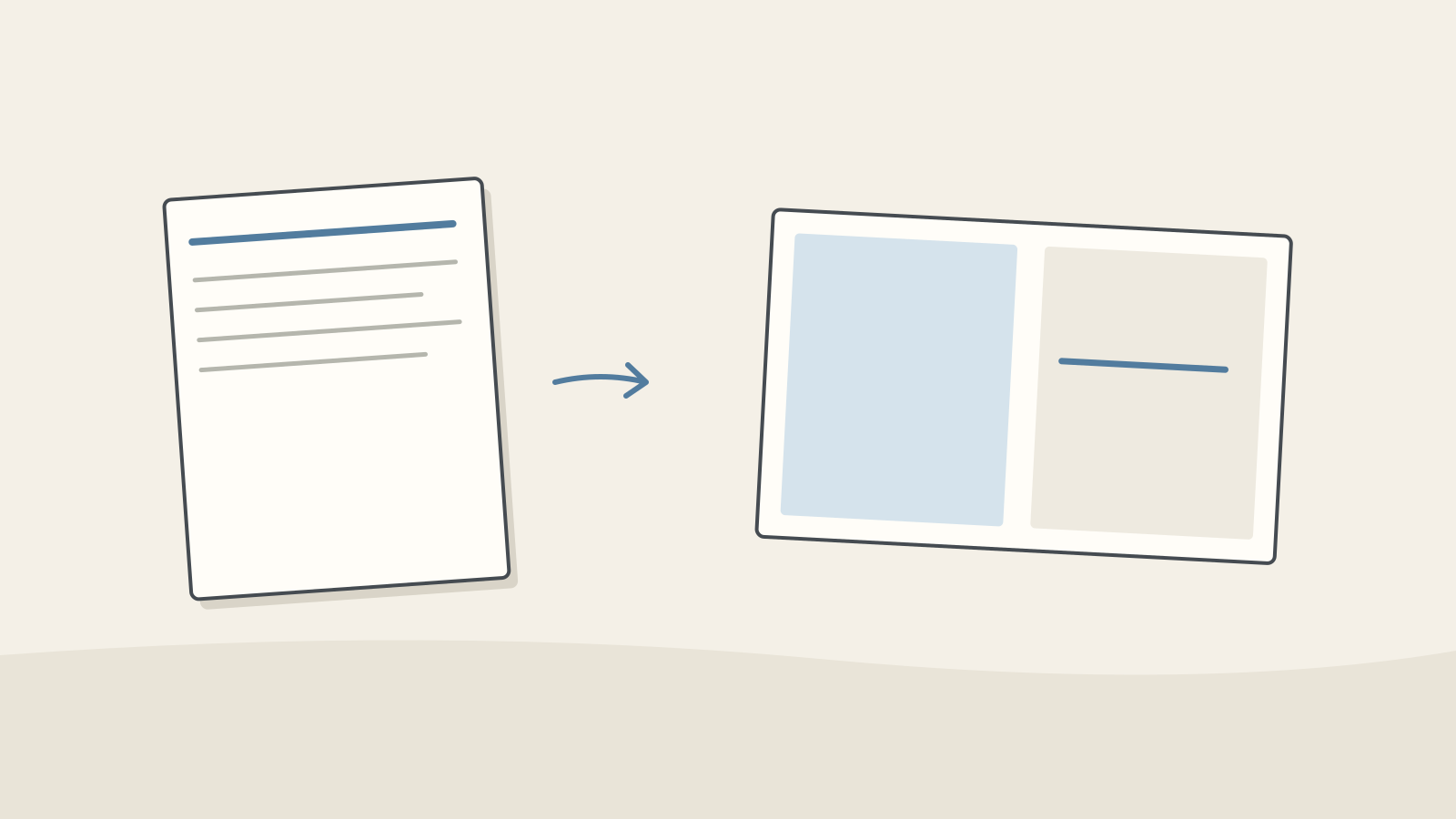
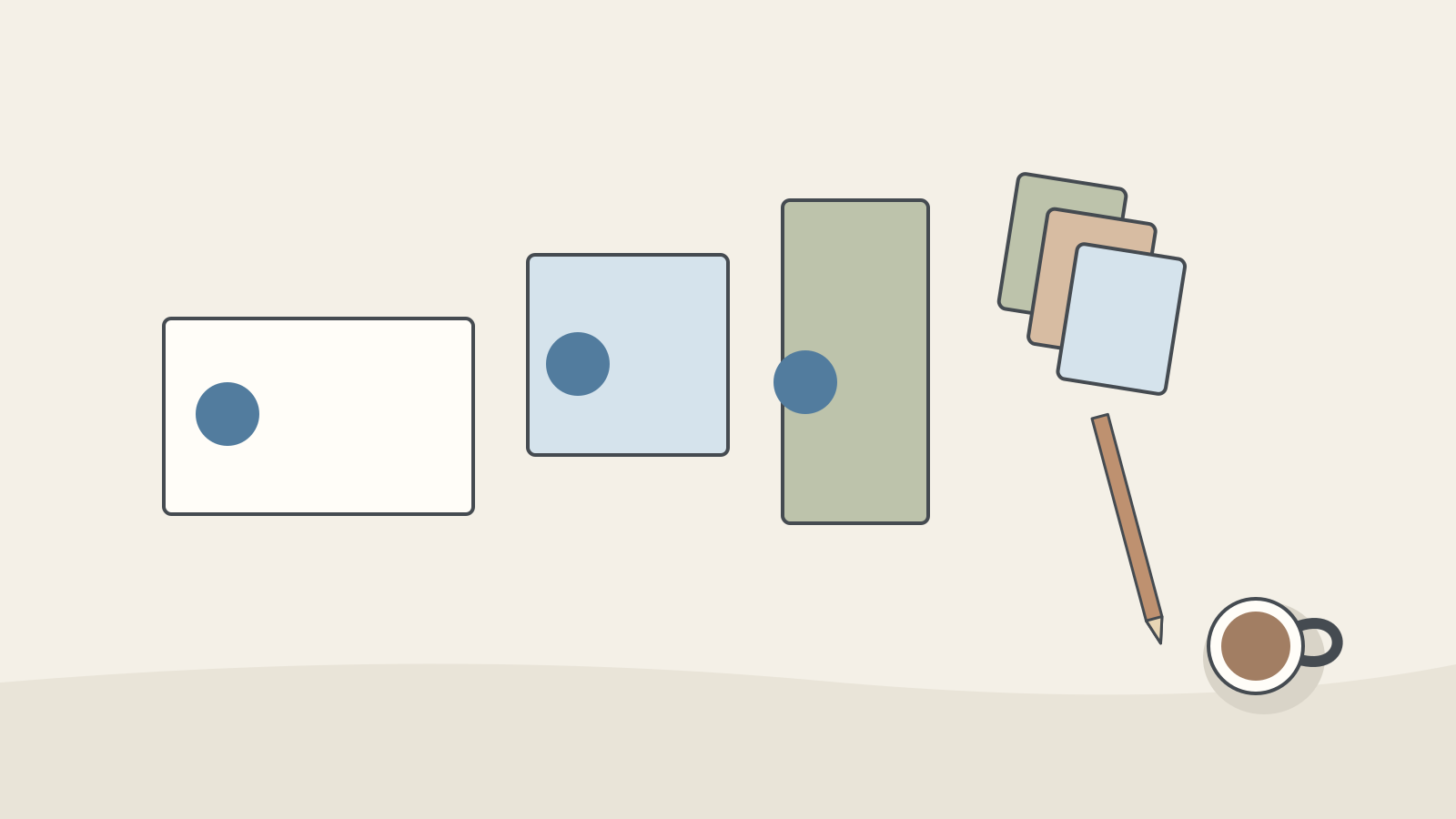
Figure: A layout note leading to a frame with subject and clear-space regions · AI Ping Write the destination first: a landscape banner, a mug and laptop on the left, and clear space for a headline on the right. Add the headline separately in your editor. Sketch those regions in a blank rectangle before requesting an image.
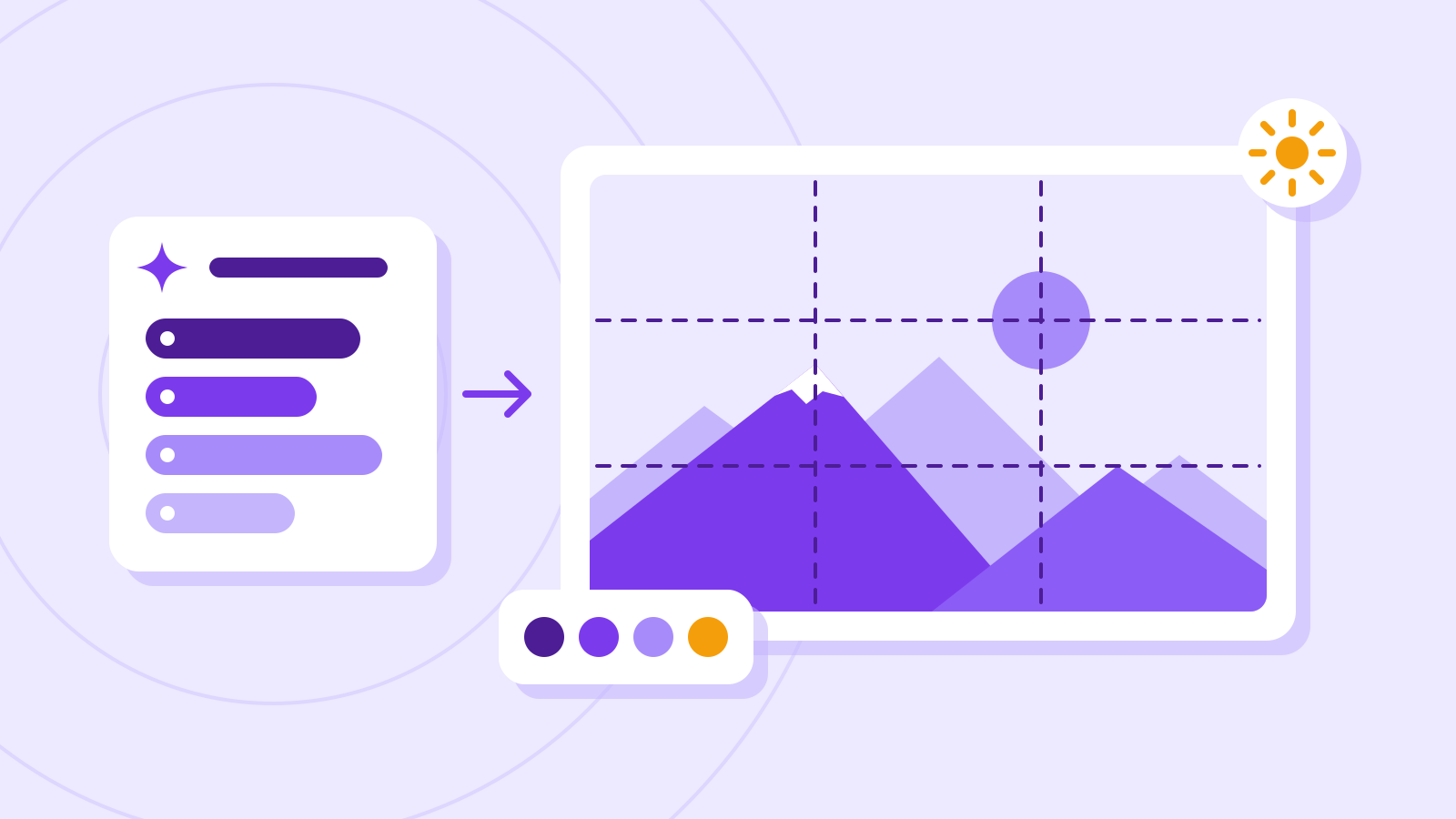
Subject, style, composition and light are a checklist for omissions, not a universally superior word order. Replace “pretty” with visible properties. When two instructions conflict, say which one matters more.
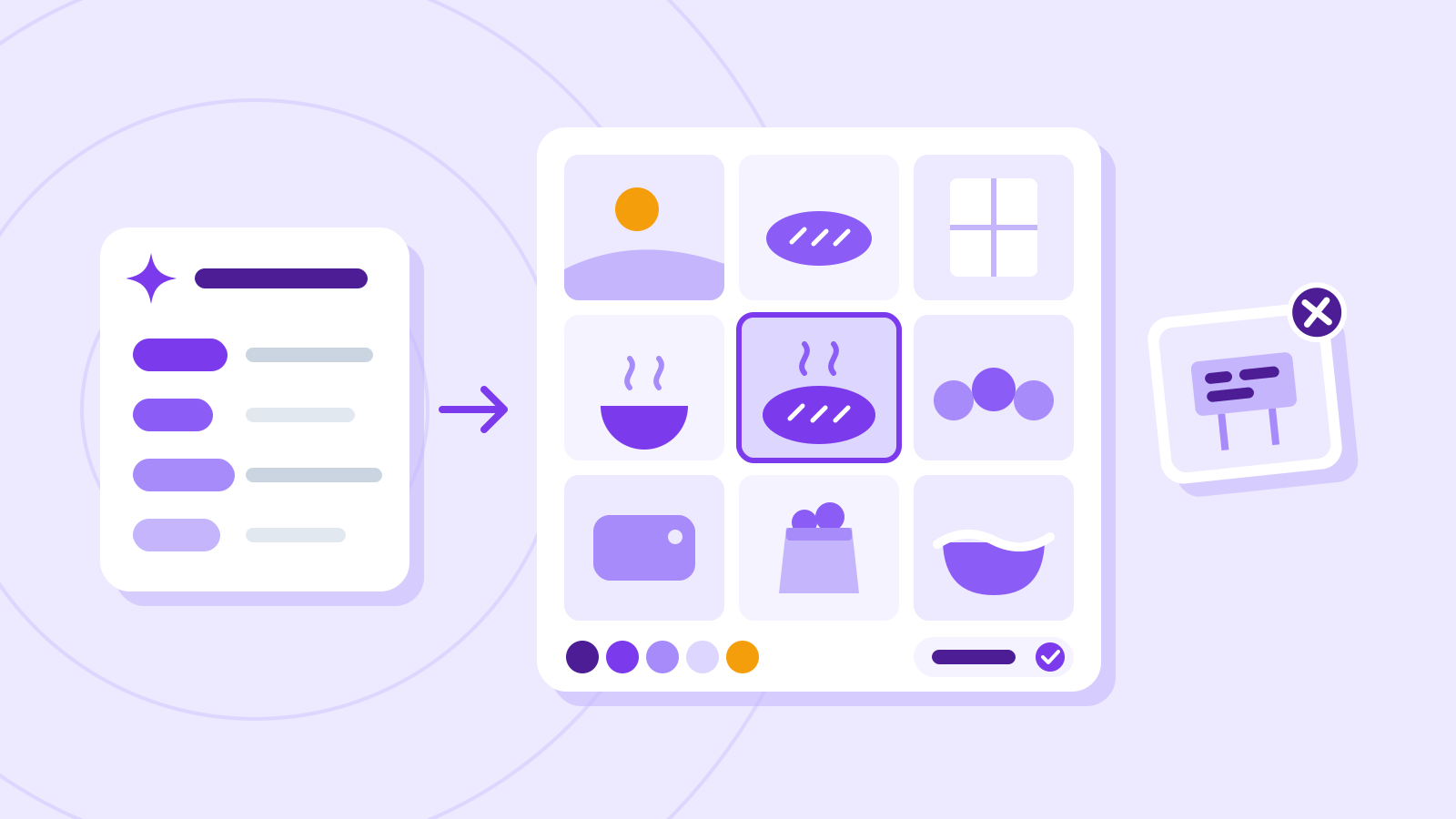
The same image, described vaguely and slot by slot Slot Vague Specific Subject A mug A white mug and a laptop on a wooden desk Style Pretty Minimal product photography, muted colors Composition (none) 45-degree overhead angle, empty space on the right Light (none) Soft afternoon sunlight from a window on the left Example prompt Use: a landscape banner for a fictional reading group Subject: a white mug and laptop on a wooden desk, both on the left Style: a calm photographic concept with muted colors Composition: an oblique overhead view, with a simple empty area for a headline on the right Light: soft afternoon window light from the left No text or logos. Prioritize the clear headline area.
Check it
- Hold the result up against the four slots. If one slot missed, rewrite only that slot more specifically.
- Composition instructions like "empty space on the right" land differently from image to image, so generate a few and pick the closest.
2 / 4
Step-by-step use
Learn what to prepare, how to request help and how to revise the result through examples and explanations.
Change one thing at a time
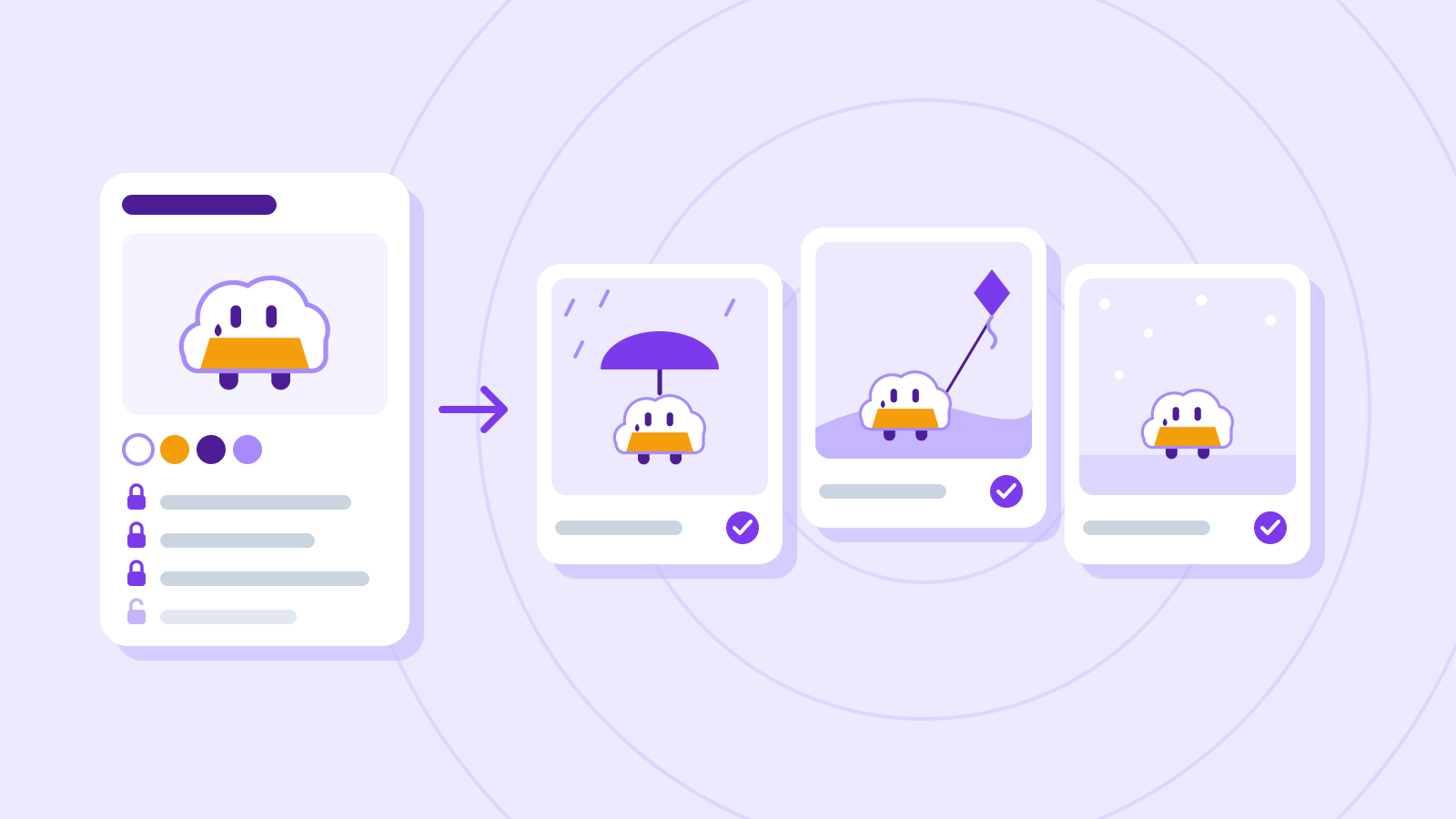
Save baseline A. Change only the light for B, then return to A for a style variation C. Editing B into C mixes two changes. Record both the parent image and the requested change in your version log.
Changing one instruction does not ensure that only one output feature changes. Record requested and observed differences separately. A supported reference-image feature may help, but it is not a geometry lock.
The table is an observation plan, not a record of generated results. Set a generation or spending limit before optional tool use. If clear space repeatedly disappears, revisit the layout sketch before adding adjectives.
A comparison plan; fill observations after making each image Version Slot changed Change Note A — Base prompt Save as baseline B Light Warm orange sunset light Inspect color temperature and object placement C Style Film photo look, light grain Inspect texture and clear space D Composition Straight on, mug in the center Inspect headline space and object size Example prompt Keep everything from the last result, but change only the light to warm orange sunset light, and give me three versions.
Spell out brand colors and things to avoid
Name brand colors precisely — "deep navy (#1E3A8A)" rather than "blue" — and list what you don't want, such as text, faces or logos.
Some models struggle with "don't include" instructions. Describe what you want instead — "an empty street" rather than "no people" — or use the tool's exclusion field (a negative prompt) if it has one.
A hex code is a target, not an instruction for every lit and shaded pixel to be identical. Put exact-color logos or interface elements on separate layers. Inspect them independently of photographic shading, and do not assume a screen preview establishes print color.
Example prompt Add this to the prompt above. Brand colors: deep navy (#1E3A8A) as the accent, white and light grey for the rest Leave out: text, faces, logos
Check it
- Sample the result's colors with your editor's eyedropper and compare them with the brand colors. Image generators often miss exact color codes, so final colors are safer to fix in your editing tool.
- If something you asked to leave out still appears, rephrase the request as what you do want.
Check usage conditions and source assets separately
Write whether the banner is for internal discussion or a public ad. Tool terms and rights to uploaded reference photos are separate checks. An image being searchable does not establish permission to upload or reuse it.
A paid account alone does not complete the review. Record the service, model, plan, terms URL, date and reference-image source. Inspect unintended logo-like marks at both delivery size and magnification.
Copyright protection and permission for commercial use are different questions. Here you are preparing evidence for a decision; the copyright lesson examines human contributions, source assets and delivery conditions.
Put the draft into its actual layout
Use a 1,200 by 600 pixel practice canvas; this is an exercise size, not an ad-platform specification. Add “A line we read this week” in your editor. A handle or window frame cutting through the headline is a layout failure even if the picture is attractive.
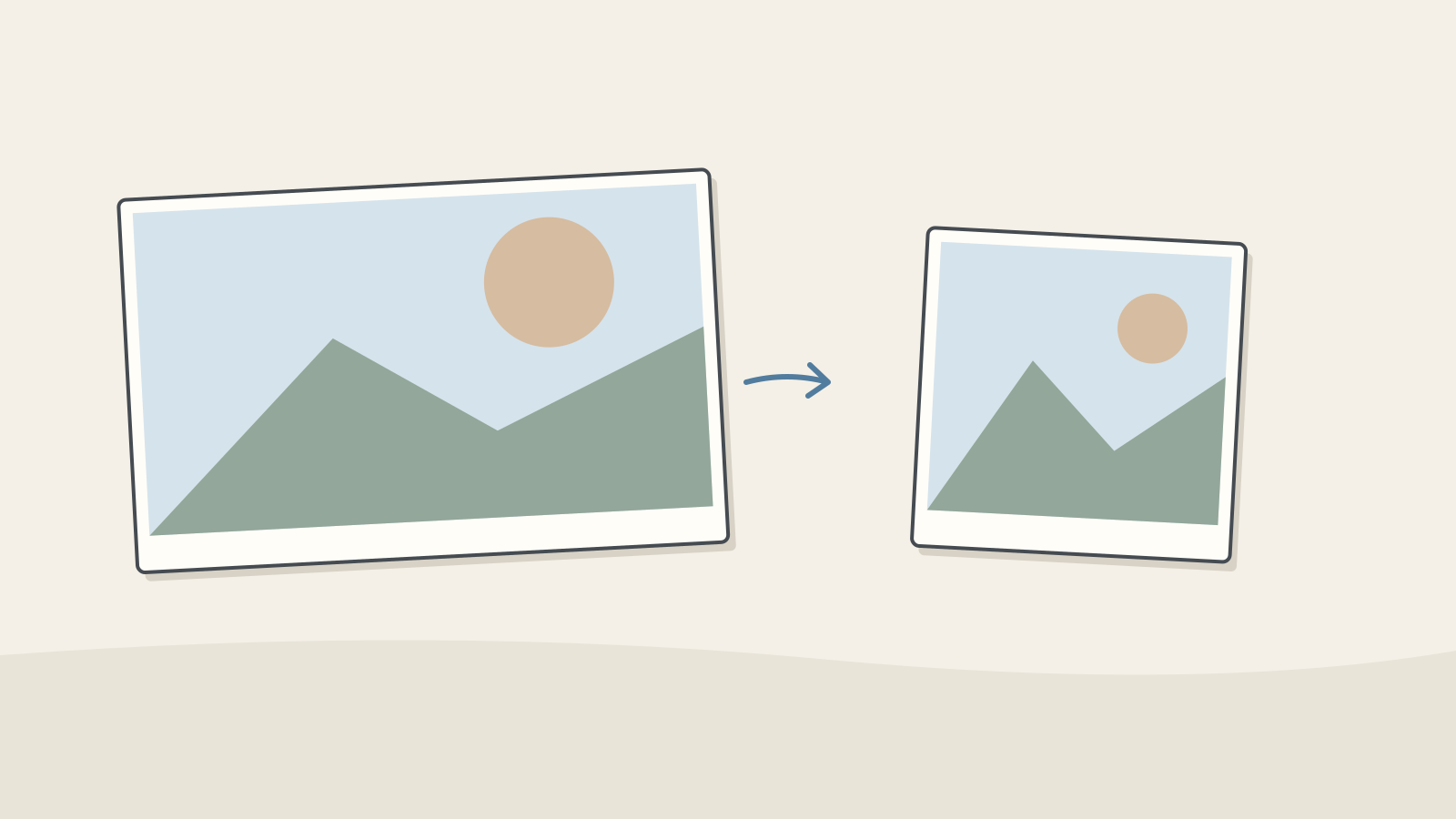
Figure: A landscape frame beside a square crop for comparison · AI Ping Also test a square crop. Center-cropping the landscape image may remove the left-hand mug. Make a separate composition when necessary; changing dimensions alone does not reposition the subject.
Separate defects visible at magnification from problems at reading size. Inspect text legibility at its destination size and object geometry close up. Both views belong in the final review.
3 / 4
Check & explain
Think about what you would ask AI, then read the explanation. Written submissions and external AI use are optional.
This is a learning check, not a test you must pass. Use the explanations to understand the ideas.
Q1How would you fix “large mug in the center; leave the right half clear”?
Write your thoughts (optional)
Your writing is not sent anywhere. It disappears when you leave or reload this page, so copy anything you want to keep.
Read the answer and explanation
Place the mug on the left and prioritize clear headline space on the right. Resolve the spatial conflict so the result has a testable criterion.
This is your own review, not an automatic score.
Q2B changes the light; C edits B to change composition. Can A and C isolate composition?
Write your thoughts (optional)
Your writing is not sent anywhere. It disappears when you leave or reload this page, so copy anything you want to keep.
Read the answer and explanation
No. C also inherits the lighting change. Create a composition variation from A and record unintended differences as well.
This is your own review, not an automatic score.
Q3The landscape banner works, but a square crop removes the mug. Does it pass?
Write your thoughts (optional)
Your writing is not sent anywhere. It disappears when you leave or reload this page, so copy anything you want to keep.
Read the answer and explanation
Hold the square version if it is part of delivery. Review subject and headline regions for each aspect ratio and recompose when needed. The 1,200×600 size is an invented exercise specification.
This is your own review, not an automatic score.
Common mistakes
- Relying on words that mean different things to different people, like "cool" or "premium"
- Changing several things at once, so you can't tell what worked
- Using generated images in client work without checking the terms of use
Your learning record
Completion is optional. Mark this lesson when you feel ready, or move to the next lesson without marking it.
Completion is saved in this browser.
4 / 4
Apply to your work
Consider how new material changes the workflow and checking criteria. Trying an external AI tool is optional.
Try it: deliver a brief and a review sheet
Start without a generator: sketch the layout and write the four-slot brief. Mark the headline region, mug location and light direction. Resolve competing instructions before generating anything.
If you have an approved tool, make A and a light-only B, then note up to two deviations in each. Otherwise compare two drawings. Label which method you used; the illustrations in this lesson are explanatory drawings, not evidence of model performance.
Deliver the selected concept, prompt, version log and unresolved issues. Check space, subject identity, color roles, reading size and source permissions. For each hold, identify the next question instead of generating indefinitely.
Write a note (optional)
Use this only if you want to record a prompt or your understanding. This is a notebook, not a connected AI assistant.
Your writing is not sent anywhere. It disappears when you leave or reload this page, so copy anything you want to keep.
References
- Writing effective text prompts — Adobe Help Center
- Nano Banana image generation — Google AI for Developers