Turn meeting notes into action items
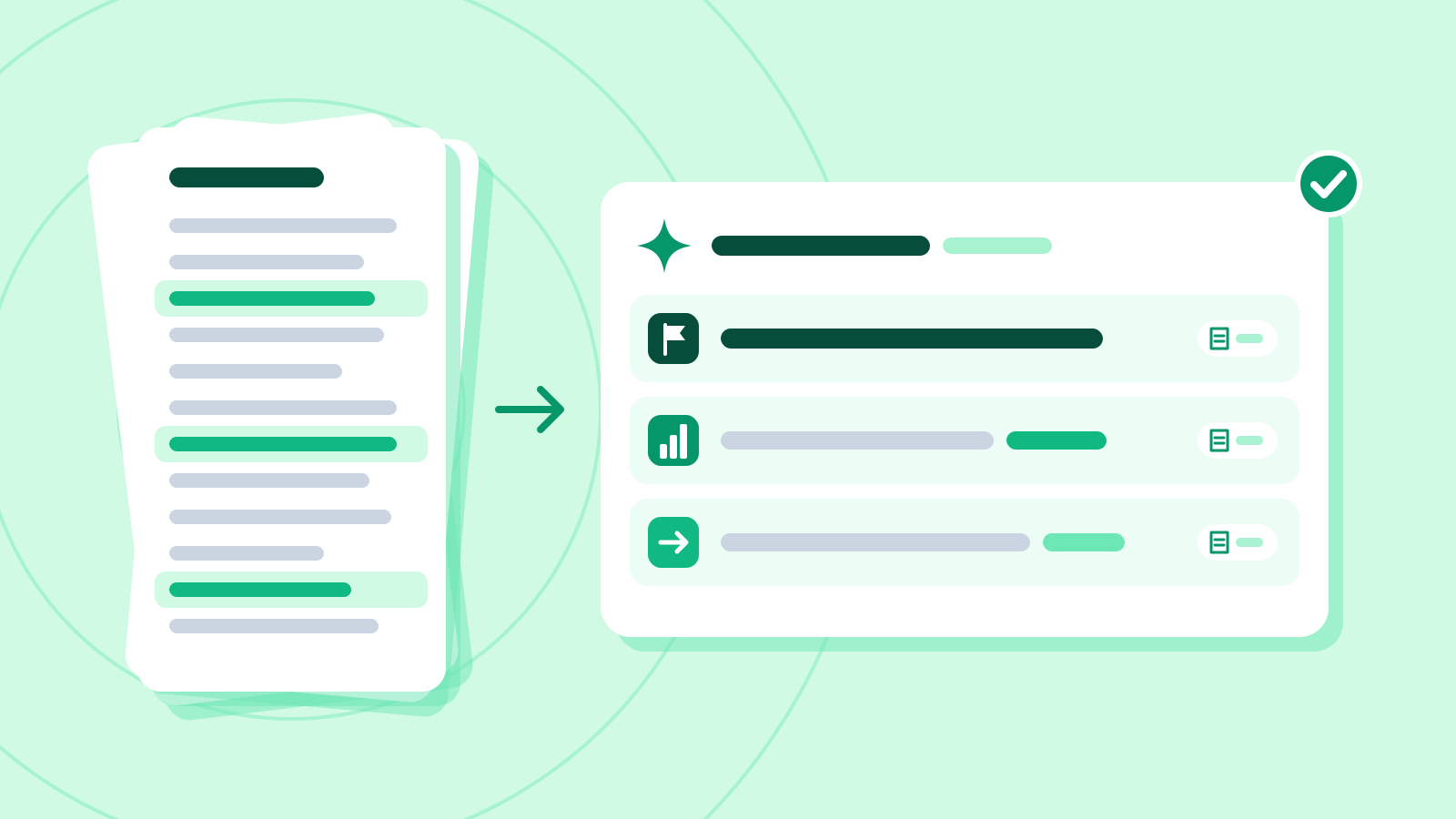
Get meeting notes sorted into decisions, open items and action items, without the assistant guessing owners or deadlines, and confirmed by the people who were there.
10 minAs of Oct 2026
By the end of this guide
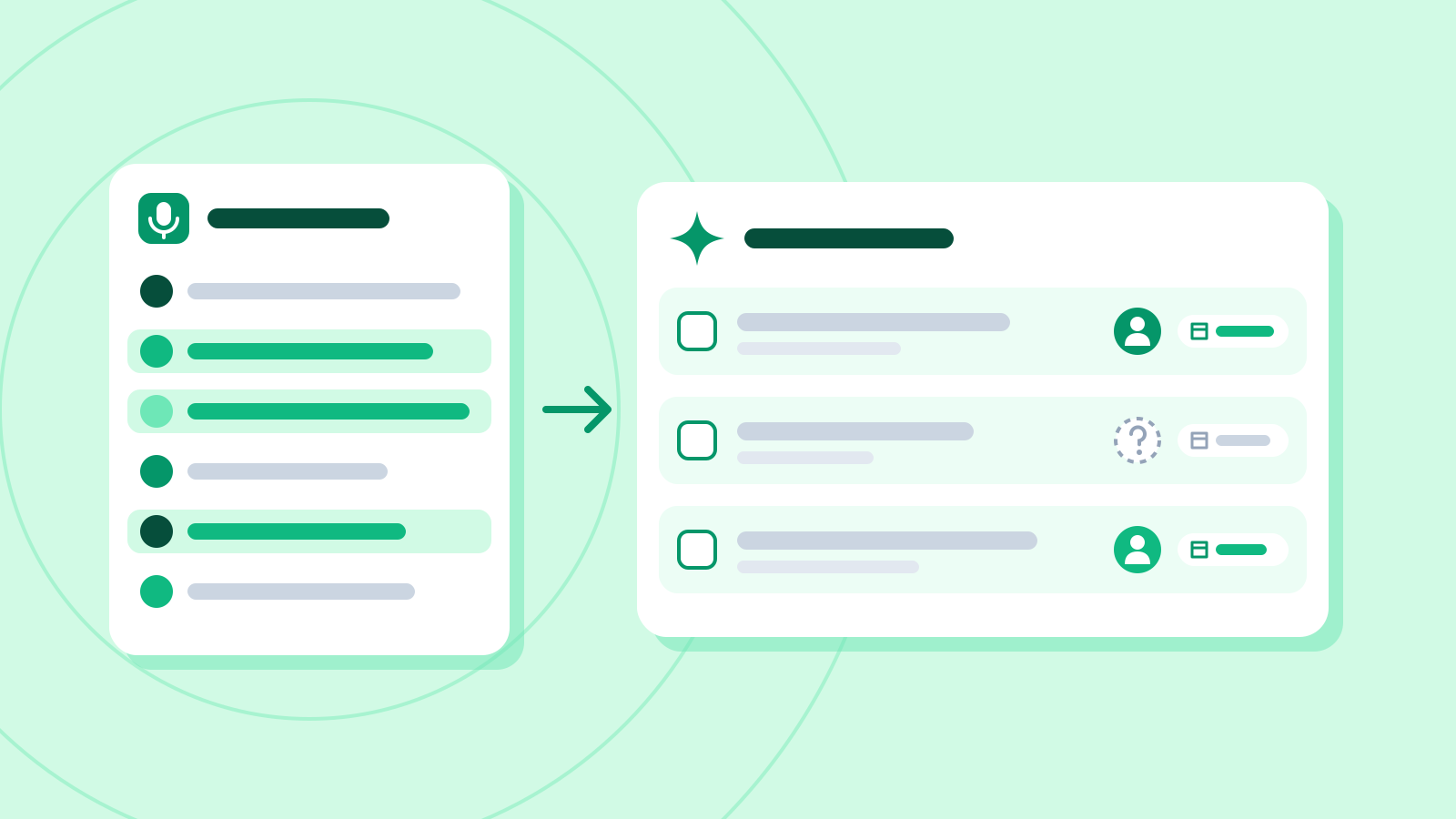
- Get meeting notes sorted into decisions, items to revisit and action items.
- Stop the assistant guessing owners and due dates, and check each one against its source line.
- Draft the follow-up email that asks attendees to confirm the summary.
Who this is for
- Anyone who ends up writing the minutes after meetings
- Anyone who often loses track of who agreed to do what
What you need
- Your meeting notes, or a transcript of the recording
- Any chat assistant, such as ChatGPT, Claude or Gemini (free versions work), or the AI summary feature in your meeting app
- Reading "Using AI at work safely: personal data and confidential information" first will help.
Step by step
Get the record ready
The record can be notes you typed up or a transcript of the recording. Some meeting tools, such as Copilot in Teams and "Take notes for me" in Google Meet, pick out key points and action items for you, depending on your plan and your organization's settings.
Tell attendees before you turn on recording or automatic notes, and follow your company's rules. Teams transcription and Google Meet's automatic notes both show every participant a notice when they're switched on.
If you're pasting into a chat assistant, remove personal data and unreleased figures first. Each line needs the speaker's name so the assistant can tell who took on what, and numbering the lines makes the evidence easy to find later.
The meeting record used in this guide (a made-up planning meeting for a November sale, Tuesday 20 October) Line Speaker What was said 1 Kim Hana We'll run the November sale from Tuesday 10 November to Monday 16 November, with a 20% discount. 2 Lee Doyun I'll make the banner drafts and share them by 27 October. 3 Park Seojun The product page copy needs fixing too, but we haven't decided who'll do it. 4 Choi Yujin We'll get more inquiries during the sale. Can we add support staff? 5 Kim Hana I'll check with HR and let you know by Friday. 6 Lee Doyun Nobody knows how much of the social media ad budget is left. 7 Kim Hana Let's look at the budget again at the next meeting. That's Tuesday 27 October at 10 a.m. Check it
- Make sure every line names its speaker, and that no contact details or unreleased figures are left in.
Ask for a fixed format
Ask only to "tidy up the notes" and you'll often get the conversation shortened in order. Ask for decisions, items to revisit and action items separately, with the action items in a table of source line, owner and due date.
Tell it to write "TBD" where the notes give no owner or due date. Giving it permission to say it doesn't know helps cut down on made-up details.
Example prompt [Paste the meeting notes here] Organize the meeting notes above. The meeting was on Tuesday 20 October 2026. - Order: decisions, items to revisit, then an action-item table - Table columns: source line, task, owner, due date - If the notes give no owner or due date, write "TBD" — don't guess - Turn deadlines given only as a weekday, like "Friday," into dates, counting from the meeting date - Don't add anything that isn't in the notes
Example AI reply Decisions: the sale runs from Tuesday 10 November to Monday 16 November, with a 20% discount (line 1). The next meeting is Tuesday 27 October at 10 a.m. (line 7).
To revisit: how much of the social media ad budget is left (lines 6–7, at the next meeting).
The action items are in the table below. Owners and due dates the notes don't give are marked TBD, and "by Friday" in line 5 is dated Friday 23 October, counting from the meeting date.
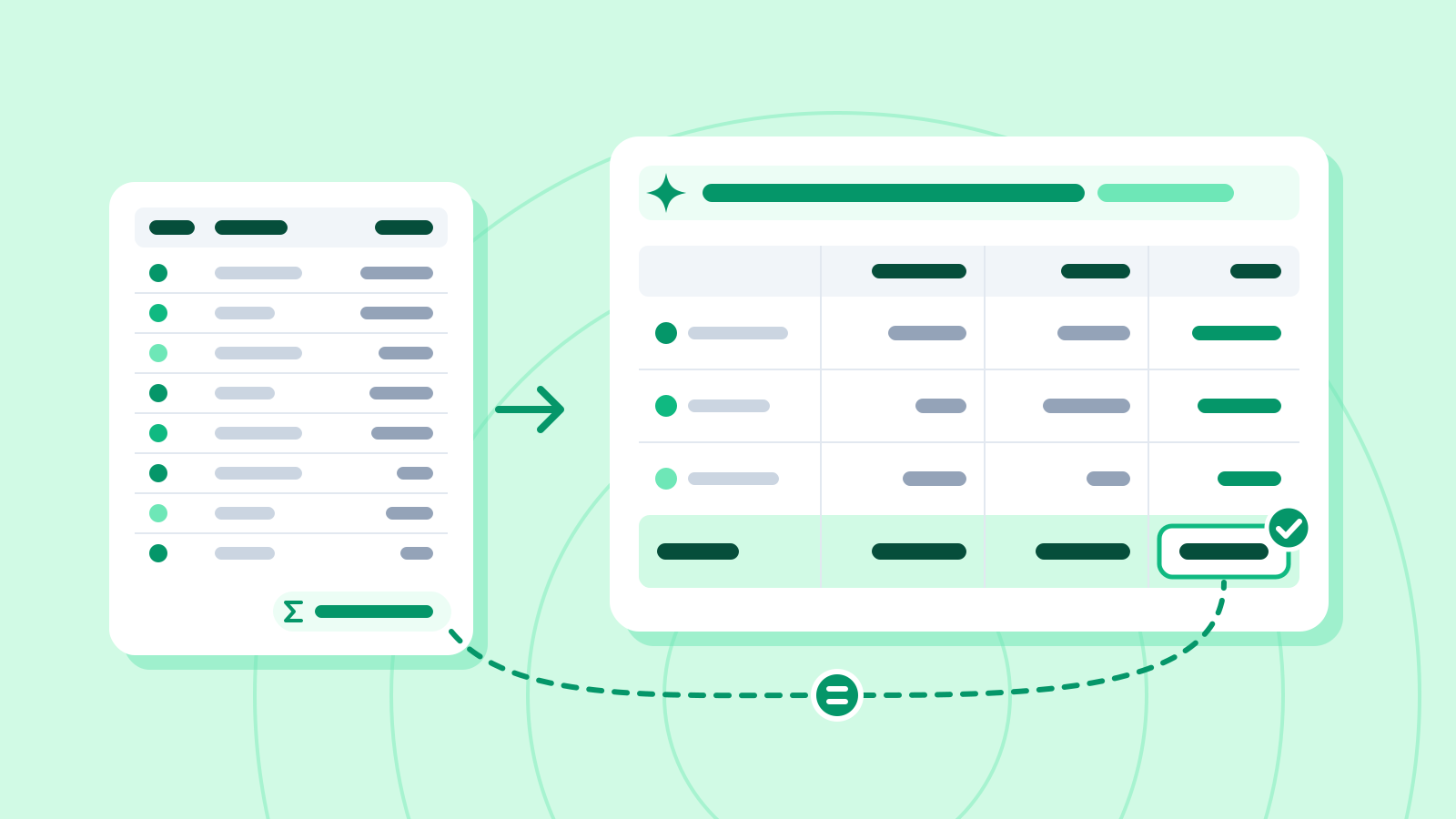
Action items (example) Line Task Owner Due 2 Make the banner drafts and share them Lee Doyun 27 October 3 Fix the product page copy TBD TBD 4, 5 Ask HR whether support staff can be added, and report back Kim Hana Friday 23 October Check it
- Go through the record line by line to make sure nothing is missing. This one should give three decisions (the dates and discount in line 1, the next meeting in line 7) and three action items (lines 2, 3 and 4–5).
Don't let it guess owners or deadlines
Assistants sometimes fill gaps in the record with something plausible: making whoever raised a topic its owner, counting "Friday" in the wrong week, or turning a postponed question into a task with an owner.
Guessed cells like these cause confusion after the meeting: someone finds a task they never agreed to, or a real task has no owner. Anything marked TBD should be settled by people, at the next meeting or in the follow-up email.
Cells an assistant tends to fill by guessing (example) Cell What the record says Guessed Correct Copy owner "we haven't decided who'll do it" (line 3) Park Seojun (who raised it) TBD HR check due "let you know by Friday" (line 5) Friday 30 October (the week after) Friday 23 October Ad budget "look at the budget again at the next meeting" (line 7) Task: check the budget (owner Lee Doyun) To revisit (no owner) Check it
- For each row of the action table, find its source line and check that the owner and due date are really there.
- Work out weekday-only deadlines again on a calendar. "Friday" said at a meeting on Tuesday 20 October means 23 October.
Confirm with attendees, then share
A summary written by AI can miss things or get them wrong; Google Meet's own help pages say its automatic summaries can be incomplete or inaccurate. Get the attendees to confirm it before you share it more widely.
When you email the summary, the approach in "Write work emails in the right tone: requests, apologies, refusals" applies as is.
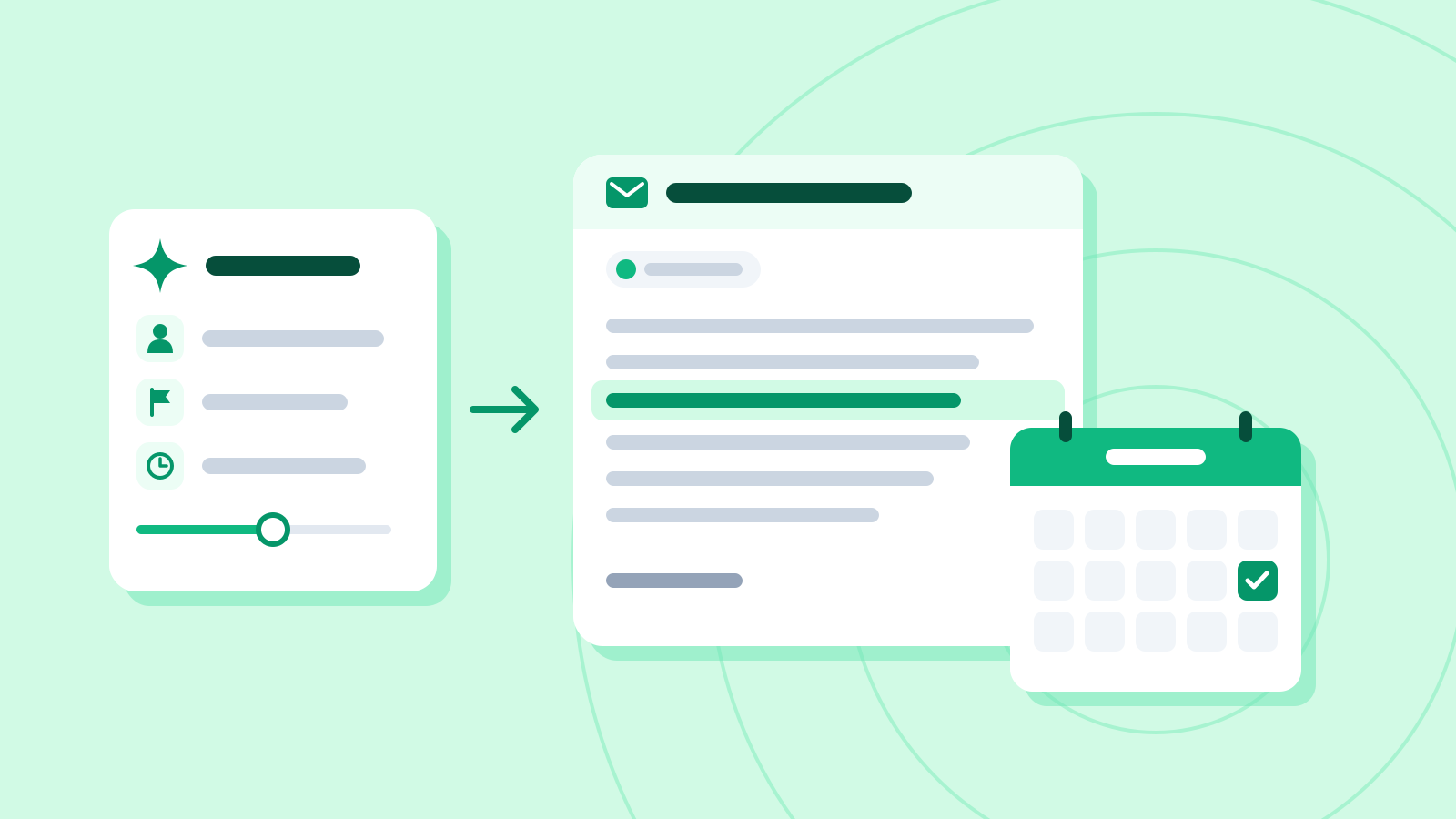
Example prompt Turn this summary into an email to everyone who attended. - Briefly cover the decisions and the item to revisit, and say the action-item table is pasted below the email - Suggest we settle the owner and due date for the product page copy before the next meeting - Ask people to flag anything missing or wrong by Thursday 22 October - A subject line, then five sentences at most, not counting the greeting, closing and signature I'm Kim Hana.
Example AI reply Subject: Notes from the 20 October meeting on the November sale
Hi all,
Today we agreed to run the November sale from Tuesday 10 November to Monday 16 November with a 20% discount. We'll come back to the social media ad budget at the next meeting, on Tuesday 27 October at 10 a.m. The action items are in the table below this email. The product page copy still has no owner or due date, so let's settle both before the next meeting. If anything is missing or wrong, please let me know by Thursday 22 October.
Thanks, Hana
Check it
- Check the dates and names in the email against the action table and the record once more.
- When attendees send corrections, update the table and tell everyone which rows changed.
Common mistakes
- Turning on recording or automatic notes without telling the attendees
- Sharing owners and due dates the assistant filled in without checking them against the record
- Leaving deadlines as a bare weekday, like "by Friday," instead of turning them into dates
References
- "Take notes for me" in Google Meet — Google Meet Help
- Start, stop, and download live transcripts in Microsoft Teams meetings — Microsoft Support
- Catch up on meetings with Microsoft Copilot in Teams — Microsoft Support
- Reduce hallucinations — Claude Platform Docs (Anthropic)