Grok Bot joins Zoom, Google Meet and Teams calls and answers in chat
Edited and reviewed by AI Ping Editorial Team
3-line summary
- Grok Bot 1.0.1 supports in-call chat replies and post-meeting summaries for Zoom, Google Meet and Teams.
- The meeting feature is available on Team, Enterprise and Ultra plans.
- Putting a shared bot in Teams channels requires an organization-wide connection and approval for each bot.

Grok Bot can join video calls in Zoom, Google Meet and Microsoft Teams. The November 11 release notes for version 1.0.1, which also cover 1.0.0, list the feature for Team, Enterprise and Ultra plans. The bot can take notes as people speak, answer questions in the meeting chat, and send a summary and action items after the call.
The same update lets organizations add a shared Team Bot to Microsoft Teams channels and chats. A meeting host admits the bot when someone invites it to a call. Making a Team Bot available as an app in the Teams workspace requires an organization-wide connection and approval for each bot from a Teams administrator.
Text replies during the call, a summary afterward
For an invitation from a meeting link, the person asking Grok Bot to join approves the request in their chat with it. The meeting host then lets it into the call. The official guide says the bot’s display name identifies it as transcribing and shows whose bot it is, or identifies it as a Team Bot.
Participants can address the bot by name in the meeting chat and get a written answer. In Zoom, a private message to the bot gets a private reply. The person who scheduled the bot can turn off replies while it continues taking notes. They can also cancel a scheduled visit or remove the bot from a call already in progress.
The summary and action items go to the bot’s own chat after the call. For accounts with Pages, the bot adds a link there to a longer report. The user can also ask the bot for a transcript or summary from an earlier call. Enterprise administrators can switch off Meetings for the organization, which prevents bots from joining or reading meetings. A bot already scheduled to attend then tells the user the feature is unavailable.

Teams administrators approve each bot app
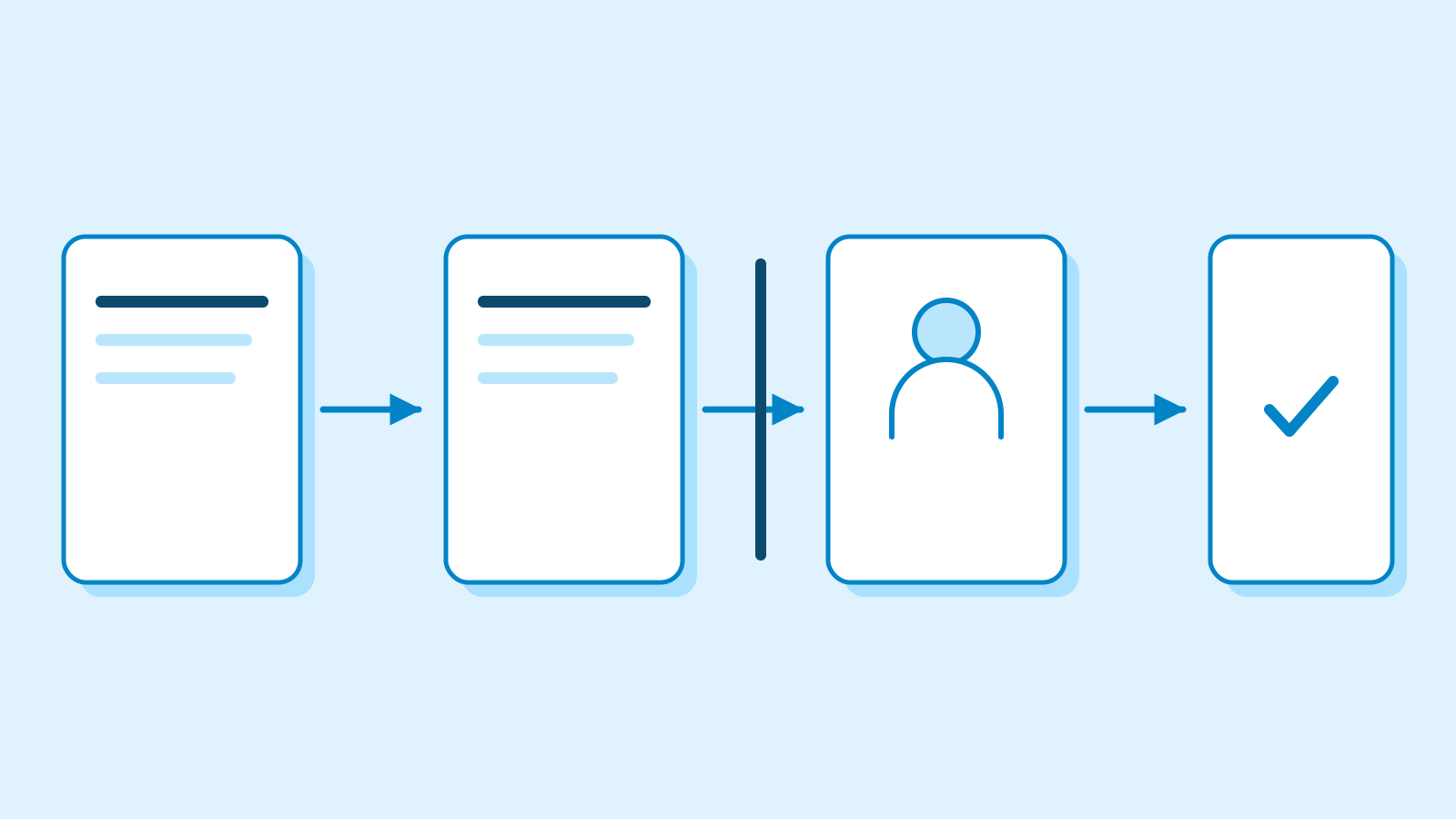
To make a Team Bot available in Microsoft Teams, a Cursor team administrator enables the integration. The owner or a designated Manager connects a published bot with a Microsoft account in the organization. A Teams administrator then approves that bot’s app. The official guide says Teams can take up to an hour to finish setup after approval. Microsoft’s own documentation describes how Teams administrators govern app access for their organization.
After setup, teammates can mention the bot in a channel it has joined, include it in group chats, or message it directly. Users link their own Microsoft account before the bot acts on their behalf. The Teams guide says the bot can read the thread it is in and the channels of teams it has joined. Slack support for shared bots was already in the September 26 release notes.
Team-wide changes go through a review
Team Bots are available to Grok Bot users on Team and Enterprise plans. An owner or Manager can grant access to the whole team or to selected people and groups. A teammate’s direct conversation with the bot stays private, including from the owner and Managers. If a teammate teaches the bot a procedure for the team, the proposed change to its shared knowledge or skills waits for approval. Changes owners or Managers make directly in the bot’s main chat take effect immediately.
An app can use an individual account for each person. A bot Manager can also share one account for the team if a team administrator enables shared logins. Actions the bot takes in that app, including edits, then use the shared account’s permissions. Shared logins are off by default. Administrators can also reserve new bot sharing for themselves, while bots that were previously shared keep their existing access.

The product introduction for Grok Bot 1.0 is dated November 2. The November 11 release notes and updated guides specify which meeting services the release supports and who approves access. The Teams guide also says that when an app is removed from the organization, teammates lose access to that bot in Teams until it is added again.
Sources
- November 11 Grok Bot 1.0.1 release notes — Grok Bot
- Grok Bot meeting invitations, chat and summaries — Grok Bot
- Microsoft Teams connection and app approval — Grok Bot
- Team Bots access, private chats and shared knowledge — Grok Bot
- Organization settings for meetings, bot sharing and shared logins — Grok Bot
- Microsoft Teams app governance — Microsoft Learn
- November 2 Grok Bot 1.0 product introduction — Grok Bot