Write spreadsheet formulas with AI: describe it, get the formula
You don't need to know function names. Describe your table and the result you want, and a chat assistant writes the formula.
About 12 min readingAs of Oct 2026
Lesson guide · goals & preparation
By the end of this guide
- Get a working formula such as SUMIFS by describing your table and conditions, without knowing any function names.
- Check the formula against a hand count on a small range, and work out any mismatch with the assistant.
- Know what to check first when you see #N/A, #VALUE! or an unexpected zero.

Who this is for
- Anyone who mixes up VLOOKUP, SUMIFS and friends
- People who build report totals by hand every week
- Anyone who has inherited a sheet full of formulas they don't understand
What you need
- Excel or Google Sheets
- Any chat assistant, such as ChatGPT, Claude or Gemini (free versions work)
- The example file to follow along (download it under the table in step 1; optional)
This reading lesson explains how to use external AI tools. Read from theory to the workflow, examples and explanations, or use the contents to jump to a section.
1 / 4
Theory
Understand what to ask AI to do, how to ask, and the ideas behind the workflow.
Start by describing your table
Practice investigating a monthly total that is too large. Read the table, define which rows qualify, obtain a formula and compare it with a hand count. The selection rule matters before the function name.
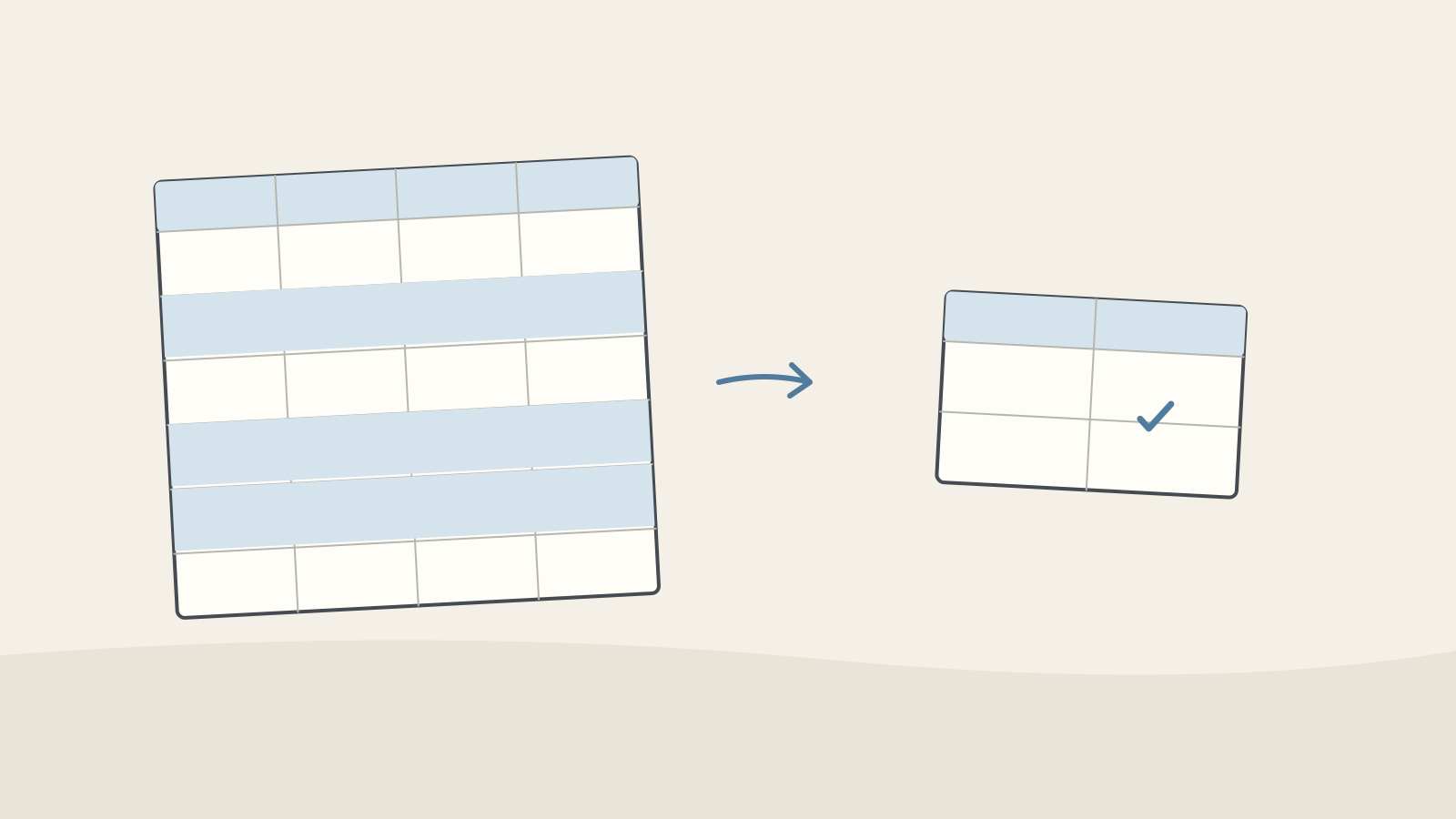
Figure: Matching spreadsheet rows are marked and connected to a total cell · AI Ping Names, dates and revenue are invented. Formula explanations are editorial solutions, not quoted model output. Use these ten practice rows rather than real customer records.
Do not assume this chat receives the spreadsheet or screen automatically. Specify columns A–D and rows 2–11. Even a tool with file access needs the correct file and range.
The example sheet used in this guide (rows 2–11 shown) Date Region Sales rep Revenue 2026-09-29 Seoul Kim Hana 310,000 2026-10-01 Seoul Kim Hana 250,000 2026-10-02 Busan Lee Doyun 180,000 2026-10-07 Seoul Park Seojun 300,000 2026-10-13 Daegu Choi Yujin 150,000 2026-10-15 Busan Lee Doyun 220,000 2026-10-24 Seoul Jung Minjae 190,000 2026-10-31 Seoul Park Seojun 240,000 2026-11-02 Seoul Kim Hana 270,000 2026-11-05 Busan Choi Yujin 160,000 Example prompt Here is my spreadsheet layout. Column A: Date (2026-10-01 format) Column B: Region (Seoul, Busan, etc.) Column C: Sales rep Column D: Revenue (number) Data runs from row 2 to row 11.
2 / 4
Step-by-step use
Learn what to prepare, how to request help and how to revise the result through examples and explanations.
Say exactly what result you want
We need revenue from rows that are both Seoul and within October 2026. Identify the region, start date and exclusive end date before reading the formula.
Example prompt Give me a formula for cell G2 that totals revenue for Seoul in October 2026. Use Excel syntax and explain what each part of the formula does.
Worked example & explanation SUMIFS adds up only the rows that meet every condition you give it. Put this formula in cell G2 — it works the same in Google Sheets.
=SUMIFS(D2:D11, B2:B11, "Seoul", A2:A11, ">="&DATE(2026,10,1), A2:A11, "<"&DATE(2026,11,1))D2:D11- What to add: revenue in column D
B2:B11, "Seoul"- Condition 1: rows where the region in column B is Seoul
A2:A11, ">="&DATE(2026,10,1)- Condition 2: dates in column A on or after 1 October
A2:A11, "<"&DATE(2026,11,1)- Condition 3: before 1 November. Safer than "up to 31 October" when some dates also carry a time.
Check it on a small range first
Don't apply the formula to everything straight away. Try it on ten or so rows you can check by hand.
If the answer is off, tell the assistant both the value you expected and the value you got — it can usually find the cause.
Rows in the example sheet that are both Seoul and October Date Region Sales rep Revenue 2026-10-01 Seoul Kim Hana 250,000 2026-10-07 Seoul Park Seojun 300,000 2026-10-24 Seoul Jung Minjae 190,000 2026-10-31 Seoul Park Seojun 240,000 Total 980,000 Example prompt I tried the formula on rows 2–11 and got 1,250,000. Calculating by hand, it should be 980,000. What's wrong?
Worked example & explanation The difference is exactly 270,000. Among rows 2–11, find the Seoul row with 270,000 in revenue and check its date. If it falls outside October, one of the date conditions is missing.
Make sure the formula includes A2:A11, "<"&DATE(2026,11,1). Without that end-date condition, November sales get added too.
Check it
- By hand, the total is 980,000. Shrink the formula's ranges to rows 2–11 (D2:D11, B2:B11, A2:A11) and check you get the same number.
- Rows 2 (29 Sept) and 10 (2 Nov) are Seoul too, but not October, so they must be left out. Keeping rows just outside the date range in your sample makes the date conditions easy to check.
Paste error messages exactly
If you see #N/A, #VALUE! or another error, paste the error and the exact formula you used. Often the cause is the data itself — dates stored as text are a classic.
Common errors and what to check first You see What it means Check first #N/A The lookup value isn't in the list (VLOOKUP, XLOOKUP and so on) Extra spaces or a format mismatch between the value and the list #VALUE! Text where a number should be Numbers that are really text — they usually sit on the left of the cell #NAME? Excel doesn't recognise a name in the formula Function spelling, and the quotes around text conditions like "Seoul" 0, no error No row matched every condition Dates stored as text, or stray spaces in region names Example prompt My SUMIFS formula in G2 shows no error but returns 0. Formula: =SUMIFS(D2:D11, B2:B11, "Seoul", A2:A11, ">="&DATE(2026,10,1), A2:A11, "<"&DATE(2026,11,1)) The dates in column A look like 2026-10-01 but sit on the left of the cell. What's wrong?
Worked example & explanation Alignment can be changed manually, so it does not establish the data type. Use =ISNUMBER(A2) to test whether the value is numeric. FALSE does not prove every value is a valid date string.
Keep an original copy, check the date format and locale, then follow the product’s conversion guidance. Verify year, month and day after conversion.
Even TRUE does not establish the intended date or range. An unexpected zero has more than one possible cause.
Read ranges and units first
D2:D11 contains amounts, B2:B11 the region and A2:A11 the dates. Corresponding ranges must cover matching rows. Check their boundaries before troubleshooting the result.
An inclusive 1 October start and exclusive 1 November end also handles timestamps on the last day of October, provided the cells are valid date values.
Record units. Mixing won and thousands of won can make a technically calculated total misleading by a factor of a thousand. This exercise treats the amounts as won.
3 / 4
Check & explain
Think about what you would ask AI, then read the explanation. Written submissions and external AI use are optional.
This is a learning check, not a test you must pass. Use the explanations to understand the ideas.
Q1Does the Seoul sale of 270,000 on 2 November belong in the October total?
Write your thoughts (optional)
Your writing is not sent anywhere. It disappears when you leave or reload this page, so copy anything you want to keep.
Read the answer and explanation
No. Both region and month must match, and this row is in November. The amount is fictional practice data.
This is your own review, not an automatic score.
Q2A right-aligned cell is treated as proof of a valid date. What is missing?
Write your thoughts (optional)
Your writing is not sent anywhere. It disappears when you leave or reload this page, so copy anything you want to keep.
Read the answer and explanation
Alignment is editable. Check the type and actual date: ISNUMBER can test numeric storage, but you still need to verify the intended calendar date.
This is your own review, not an automatic score.
Q3An invented 10,000 Seoul sale on 31 October leaves the total at 980,000. What should you check first?
Write your thoughts (optional)
Your writing is not sent anywhere. It disappears when you leave or reload this page, so copy anything you want to keep.
Read the answer and explanation
Check whether the formula ranges include the new row, then inspect date type and region spelling. Under the invented conditions, the expected total is 990,000.
This is your own review, not an automatic score.
Common mistakes
- Pointing at things the assistant can't see, like "this column" or "over there"
- Pasting real customer data or confidential company figures
- Applying a formula to the whole sheet without checking a small sample first
Your learning record
Completion is optional. Mark this lesson when you feel ready, or move to the next lesson without marking it.
Completion is saved in this browser.
4 / 4
Apply to your work
Consider how new material changes the workflow and checking criteria. Trying an external AI tool is optional.
Try it: add a boundary-date row
On a copy, add an invented Seoul sale of 10,000 on 31 October and extend the ranges. The expected total becomes 990,000 rather than 980,000.

Figure: One boundary-date row changes while the totals are compared · AI Ping Change only that date to 1 November: the total should return to 980,000. Or keep 31 October and change the region to Busan; the Seoul total should stay unchanged. Vary one condition at a time.
Record formula, selection criteria, expected and actual results. Investigate differences instead of editing the output to match. The next lesson applies these checks to a grouped table.
Write a note (optional)
Use this only if you want to record a prompt or your understanding. This is a notebook, not a connected AI assistant.
Your writing is not sent anywhere. It disappears when you leave or reload this page, so copy anything you want to keep.
References
- SUMIFS function — Microsoft Support
- SUMIFS function — Google Docs Editors Help
- How to correct a #N/A error — Microsoft Support
- Convert dates stored as text to dates — Microsoft Support