When the cutoff moves an hour earlier: write a change brief with AI
Trace an approved cancellation change from meeting notes to screen copy and acceptance checks. Test the exact boundary, preserve exceptions and repeat with a new policy.
24 min readAs of Nov 2026
Lesson guide · goals & preparation
By the end of this lesson
- Separate an approved rule from a suggestion.
- Write checks that give the same answer across customer and staff screens.
Who this is for
- Anyone turning a meeting decision into a screen change
What you need
- Use the fictional booking records below. You can follow the lesson on paper.
1 / 4
Theory
Understand what to ask AI to do, how to ask, and the ideas behind the workflow.
What changed after the meeting?
A planner hears “move the cancellation cutoff an hour earlier.” That sentence alone leaves out the day, the hour and the bookings it covers. Before drafting copy, ask who can do what and when.
A change brief defines a difference in observable behaviour. If the help page says a booking is closed while the button still accepts it, the two parts describe different services.
Our fictional venue uses one local service clock. Cancellations are made the day before a visit. A policy version applies by booking creation date, which is distinct from the date of the visit or the cancellation request.
Lay out decisions and screen inventory
P1 is the live rule. M2 is the approved amendment. N3 is a suggestion in the same meeting file. Record these roles so the final note in the file does not automatically become policy.
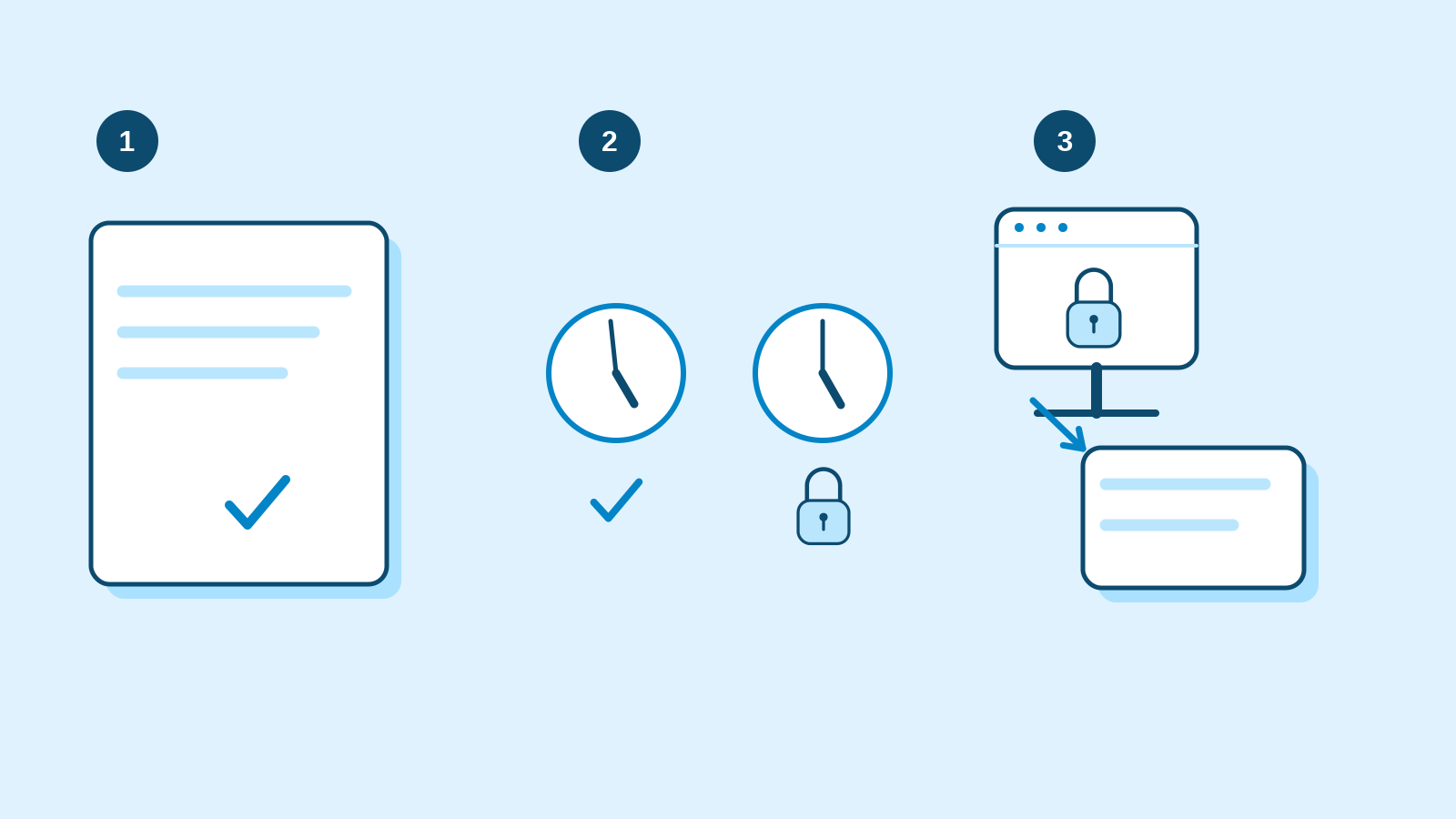
Illustration: The approved cutoff links to customer and staff screens while a receipt stays outside the change · AI Ping
- Read P1 and the approved M2 note for the creation date and new cutoff.
- A new standard booking accepts at 16:59 and closes at 17:00 the day before.
- Apply the boundary to the customer button and staff lookup. Keep the price receipt as it was.
Read every step as text
- From “move the cancellation cutoff an hour earlier”, a draft says every December visit closes at 17:00 and the receipt changes too. Before touching all three screens, read what was approved.
- Approved note M2 turns on the day a booking was created, not the day it is used. Only standard bookings created from Dec 1 at 00:00 follow the new rule.
- Standard bookings created earlier keep P1 and can cancel before 18:00 the day before. One created on Nov 30 is still accepted at 17:00.
- “Before 17:00” excludes 17:00 itself. A new standard booking is cancelled at 16:59 the day before and is closed from 17:00.
- N3, online cancellation for groups, is a suggestion with the decision deferred. It stays out of the spec, and groups still contact staff.
- S1 tells new standard bookings that online cancellation closes at 17:00 the day before, and the button closes at that same moment.
- Staff looking up the rule in S2 must see the same cutoff. If one screen still said 18:00, customer and staff would get different answers.
- Receipt S3 shows only the price, and M2 changes no price. The draft’s receipt edit is removed and S3 is left alone.
- Verify with one standard booking created on Dec 2. Look at S1 and S2 together at 16:59 and at 17:00 the day before; both screens must give the same verdict.
“Before 17:00” excludes exactly 17:00. Use the service’s receipt time. A reader might open a screen at 16:59 and submit after the hour.
S1 contains the customer message and button. S2 tells staff which rule applies. S3 is a price-only receipt. Use the inventory to name affected surfaces and identify a price screen with no cancellation dependency.
For a manual test, order the fields as creation date, booking type, visit date and receipt time. Vary the creation date first, then hold it fixed and move the receipt time one minute. Changing both at once makes the result harder to explain.
Fictional venue records ID Record P1 · current Standard bookings can cancel online before 18:00 the day before. Groups contact staff. M2 · approved For standard bookings created on or after Dec 1 at 00:00, cutoff is before 17:00 the day before. Older bookings and group procedure retain P1. N3 · suggestion Could groups cancel online as well? Decision deferred. S1 / S2 / S3 Booking detail and button / staff policy lookup / price-only receipt
2 / 4
Step by step
Learn what to prepare, how to request help and how to revise the result through examples and explanations.
Request an impact table and observable checks
Ask for an old and new action for each screen, with a source ID. “Check that it works” is too vague to test. Supply a booking, an action and a result you can observe.
For a standard booking created Dec 2 with a Dec 5 visit, run the cancellation test on Dec 4. Change only the submission time from 16:59 to 17:00 so you know why the outcome changed.
Reserve space for open questions. The material establishes a staff route for groups. It supplies no refund amount, so no refund amount belongs in the brief.
Example prompt Using only P1, M2, N3 and S1–S3, draft a change brief. List screen, scope, copy or behaviour and source ID. Write boundary and exception checks as booking → submission → expected result. Set aside unapproved suggestions. Source records P1 · current | Standard bookings can cancel online before 18:00 the day before. Groups contact staff. M2 · approved | For standard bookings created on or after Dec 1 at 00:00, cutoff is before 17:00 the day before. Older bookings and group procedure retain P1. N3 · suggestion | Could groups cancel online as well? Decision deferred. S1 / S2 / S3 | Booking detail and button / staff policy lookup / price-only receipt
Test what “until” means in the draft
An editor wrote this faulty draft: “All December visits can cancel online until 17:00 the day before. Add the new deadline to receipts.” Try three bookings against it.
A Nov 30 booking for a Dec 5 visit still uses the old cutoff. A new group booking still goes to staff. Neither the month of use nor the word “all” captures the approved scope.
For a new standard booking, show what happens at exactly 17:00. Explicit closed-from wording resolves the ambiguity of “until”. Remove the receipt change and record the source of the correction.
Example prompt Replace “December visits”, “all” and “until” with M2’s creation date, booking type and exact cutoff result. Align S1 and S2, preserve S3, keep N3 deferred and include one booking governed by P1.
Read the finished brief on both screens
For a new standard booking S1 can say “Online cancellation closes at 17:00 the day before your visit.” Change the button at that same instant. S2 must give staff the same cutoff. Keep the earlier and group messages.
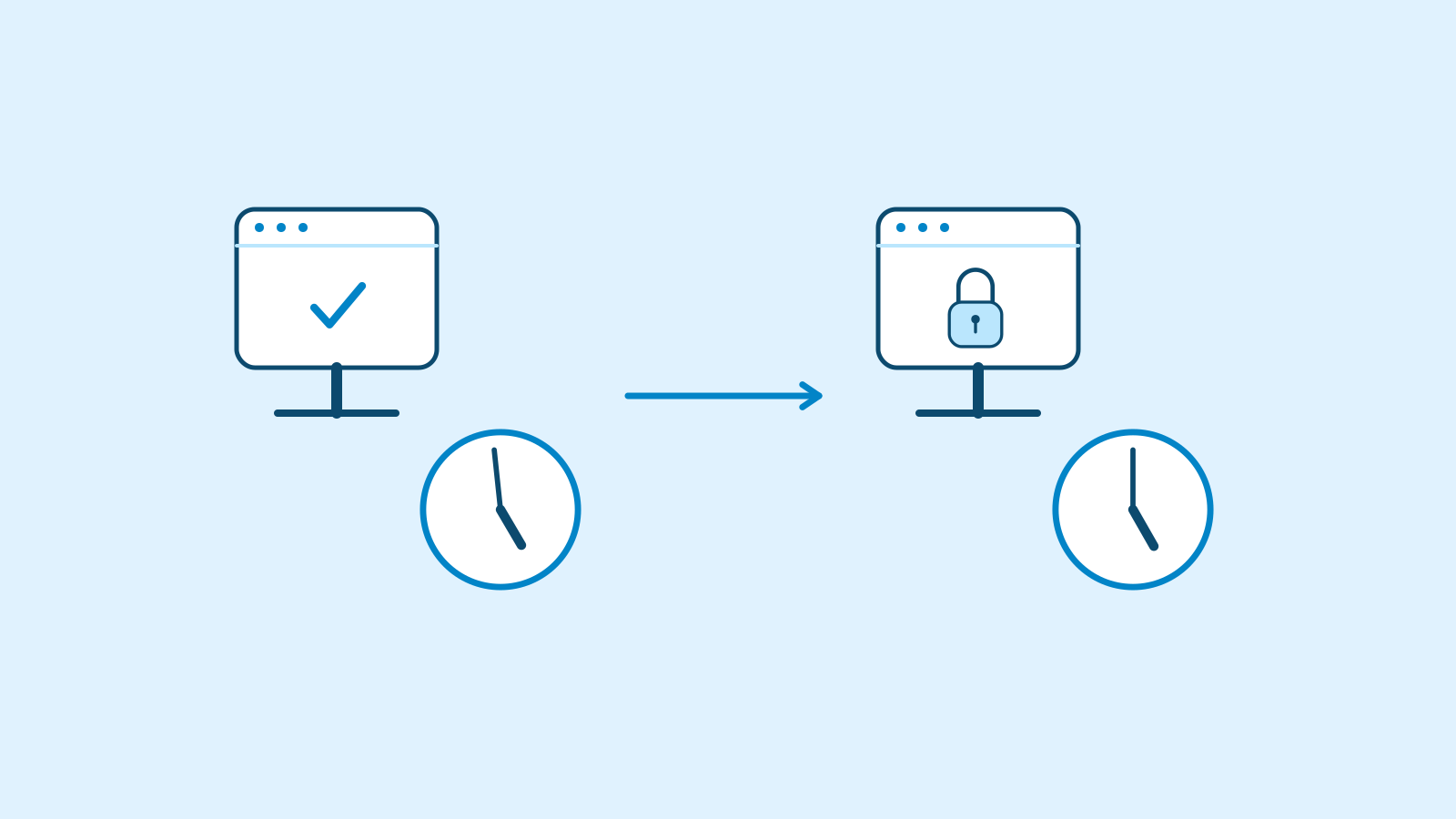
Illustration: Two button states on opposite sides of the exact cutoff · AI Ping One reader can act as S1 and another as S2. Read the same test row aloud. If the two readers reach different answers, a condition has been lost in one piece of copy.
Hand off the required behaviour, wording and open decision separately. The table lists expected results for later implementation checks.
Dec 5 visit, submission on Dec 4 Booking Submit S1 / S2 expected Standard, created Dec 2 16:59 Accept / available Standard, created Dec 2 17:00 Closed message / closed Standard, created Nov 30 17:00 Accept under P1 / before 18:00 Group, created Dec 2 16:59 Contact staff / group process
3 / 4
Self-check
Think about what you would ask AI, then read the explanation. Written submissions and external AI use are optional.
This is a learning check, not a test you must pass. Use the explanations to understand the ideas.
Q1Which rule covers a standard booking created Dec 1 at precisely 00:00?
Write your thoughts (optional)
Your writing is not sent anywhere. It disappears when you leave or reload this page, so copy anything you want to keep.
Read the answer and explanation
The fictional M2 includes the effective instant. On the previous day 16:59 is open and 17:00 is closed.
This is your own review, not an automatic score.
Q2Which test catches the staff screen still showing 18:00?
Write your thoughts (optional)
Your writing is not sent anywhere. It disappears when you leave or reload this page, so copy anything you want to keep.
Read the answer and explanation
Use a new standard booking at 17:00 the day before. Closed on S1 and open on S2 exposes the mismatch.
This is your own review, not an automatic score.
Q3How do B1, B2 and B3 behave at the new A4 boundary?
Write your thoughts (optional)
Your writing is not sent anywhere. It disappears when you leave or reload this page, so copy anything you want to keep.
Read the answer and explanation
B1 stays on M2 and accepts at both times. B2 accepts at 16:29 and closes at 16:30. B3 routes to staff at both times. B2 copy should say “Online cancellation closes at 16:30 the previous day.” Match S2 and leave S3 alone.
This is your own review, not an automatic score.
Common mistakes
- Using visit date in place of creation date
- Merging a proposed exception into an approved rule
Your learning record
Completion is optional. Mark this lesson when you feel ready, or move to the next lesson without marking it.
Completion is saved in this browser.
4 / 4
Apply to your work
Consider how new material changes the workflow and checking criteria. Trying an external AI tool is optional.
Try it: who gets the next amendment?
Assume M2 is in effect and read the new A4 note. Write customer copy and a staff decision table. Use bookings created immediately before and at the new effective time.
Test submissions on both sides of the new cutoff and include a group. Compare your decision with the last review question after you have written it.
New approval · all visits Jan 10, cancellations submitted Jan 9 ID Record A4 Standard bookings created on or after Jan 5 at 00:00 close at 16:30 the day before. Other bookings retain their previous rules. B1 / B2 Standard created Jan 4 at 23:59 / standard created Jan 5 at 00:00 B3 Group created Jan 6. Candidate submission times 16:29 and 16:30.
Write a note (optional)
Use this only if you want to record a prompt or your understanding. This is a notebook, not a connected AI assistant.
Your writing is not sent anywhere. It disappears when you leave or reload this page, so copy anything you want to keep.
References
- Gherkin Reference — Cucumber
- Frame a problem brief with AI — AI Ping