Use AI to correct a campaign after the invitations went out
Update live placements and write a separate correction for existing bookers without promising an automatic seat transfer.
22 min readAs of Nov 2026
Lesson guide · goals & preparation
By the end of this lesson
- Map a change to live and delivered copy.
- Trace the required booking action to the change memo.
Who this is for
- Marketers maintaining campaigns after launch.
What you need
- Identify the date, fee and booking terms in a short announcement.
1 / 4
Theory
Understand what to ask AI to do, how to ask, and the ideas behind the workflow.
The old date is still in the inbox
Editing a booking page does nothing to yesterday’s inbox. Ask for a correction pack covering both surfaces the team controls and information customers already possess. One new headline cannot perform both jobs.
A beginner often assumes deleting the old email will fix things. It cannot: once a message sits in someone’s inbox, you can neither edit nor recall it. So list each surface first and answer one question—can I still change this? The banner and booking page earn a yes; the sent email earns a no. Sketch it as two columns and the split is obvious.
Read the update alongside the publication log
B2 supplies a new date and a new action for existing bookers. The original fee and eligibility still come from B1. L1 and L2 are delivery facts, not promises to customers. Without them an assistant cannot tell where an old date will survive.
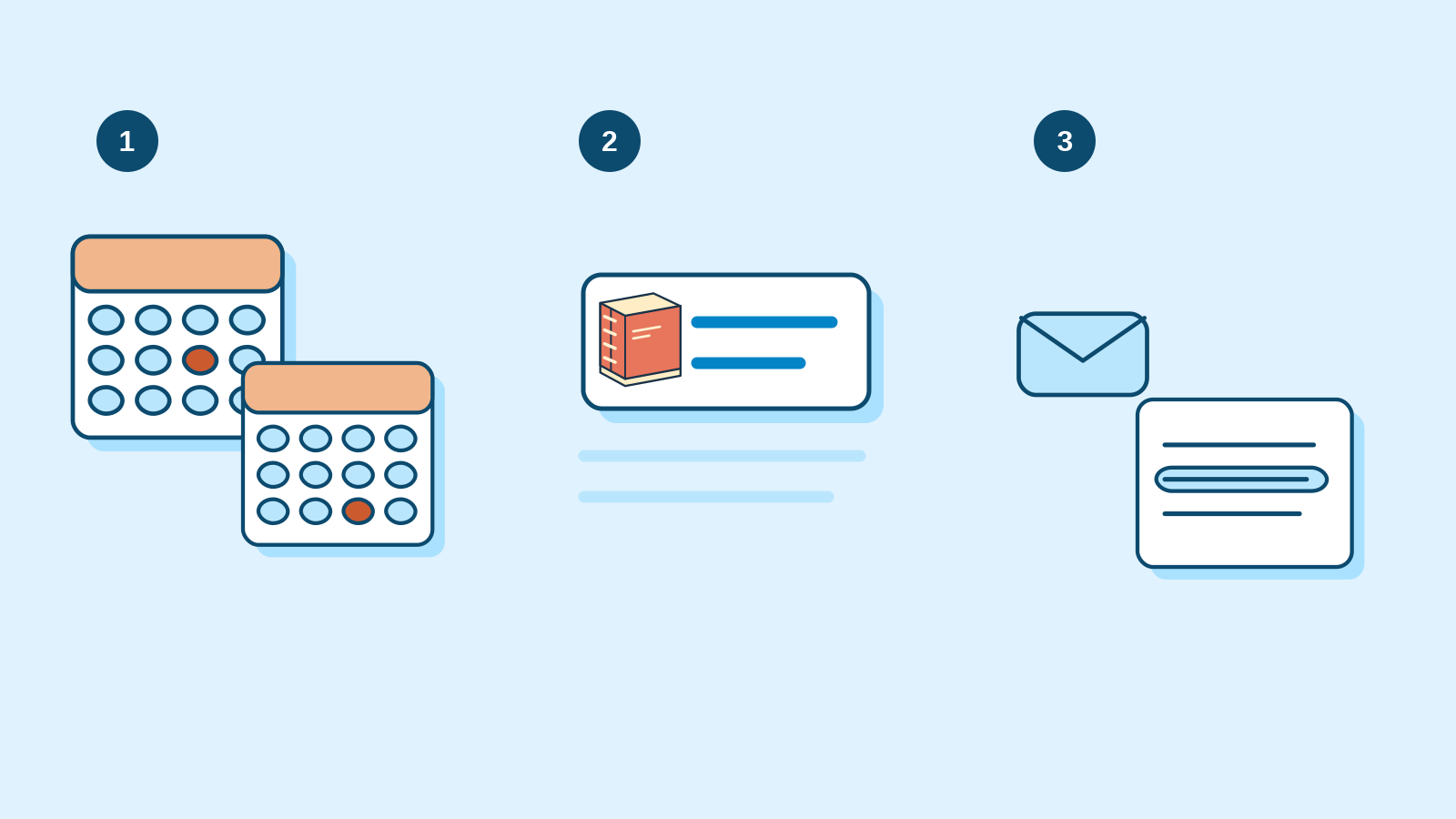
Illustration: A live banner and an already-delivered email take different correction paths · AI Ping
- After the 18 May notice, B2 moves the workshop to 25 May at 14:00.
- Update the public banner and booking page to display the new date.
- Previous recipients need a separate correction explaining the new date and required reply.
Read every step as text
- B2 moves the workshop from 18 May to 25 May at 14:00. “Change the date everywhere” assumes every copy can still be edited. Go through the places that show the old date.
- The live banner can still be edited. It is replaced with “25 May bookbinding · book ahead”.
- The booking page is updated too. Only the date changes; the fee, materials and one-seat limit carry over from B1.
- The 18 May email already sits in bookers’ inboxes and cannot be edited or recalled. It needs a separate new message, not an edit.
- The correction names the old date first, then 25 May at 14:00. The old date is how bookers recognise which reservation this is about.
- B2 says the fee and terms are unchanged, so the email states that. It adds no refund deadline, because the records give none.
- The draft line “transferred automatically, no action needed” gets only the date right. B2 promises neither a transferred seat nor that bookers may do nothing, so both claims are removed.
- One action from B2 takes their place: reply to this email with your availability and the seat is confirmed. All three texts are drafts awaiting approval; nothing has been sent.
Beginners read the approval memo and skip the delivery log. Cover L2 with your hand and the gap appears: you would conclude the banner alone needs fixing and forget the old date sitting in bookers’ inboxes. Fix the order instead. Find the changed value in B2, then walk each log line asking, does the old date still live here? Colour the editable rows and the delivered rows differently, and the confusion fades.
Original B1, approved B2 and delivery log ID Record B1 Adult bookbinding on 18 May at 14:00. KRW 18,000 including materials. Book ahead, one seat per person. B2 New date: 25 May, 14:00. Fee and terms unchanged. Existing bookers must reply to the email to confirm attendance before their seat is confirmed. L1 Banner and booking page are live. L2 Existing bookers already received the 18 May email.
2 / 4
Step by step
Learn what to prepare, how to request help and how to revise the result through examples and explanations.
Ask for both copy and delivery state
Request before, after and source first. Add audience and delivery state next. The old date belongs in a correction email because it identifies the affected booking. It does not belong on the new banner. Label the packet “copy for approval” until someone has actually updated or sent it.
When the answer arrives, run one check by hand. Count where the old “18 May” lands; it should appear only in the correction email. If it leaks onto the banner or booking page, a first-time reader is confused. Then confirm each delivery state still reads “copy for approval.” A model may type “sent,” but no mail has moved—that cell changes only after a person acts. Skip these and the old date resurfaces.
Example prompt For each destination return current state, replacement or separate correction, revised copy and source. Apply B2 only where it changes B1. Specify the action existing bookers must take; leave proposed actions pending. Original B1, approved B2 and delivery log ID | Record B1 | Adult bookbinding on 18 May at 14:00. KRW 18,000 including materials. Book ahead, one seat per person. B2 | New date: 25 May, 14:00. Fee and terms unchanged. Existing bookers must reply to the email to confirm attendance before their seat is confirmed. L1 | Banner and booking page are live. L2 | Existing bookers already received the 18 May email.
Remove an unsupported transfer promise
Consider this editor-written faulty line: “We transferred your reservation automatically. No action needed.” The date may be right while the instruction is wrong. Ask for the correction only in the message to existing bookers. A first-time banner reader cannot reply to an email they never received.
Splitting the line helps. “We transferred it” and “no action needed” are two separate promises: one says we moved the seat, the other says the reader can sit still. B2 authorises neither. So keep the date and cut both halves. Where the halves were, leave only the reader’s single action. A corrected version reads, “The date is now 25 May. Reply with your availability and we will confirm your seat,” which states the reader’s action plainly.
Example prompt Remove the unsupported automatic transfer. Draft a separate correction naming the old and new dates and the required reply for existing bookers.
Worked example & explanation Confirm the 25 May seat after the reply. Keep the original fee and avoid introducing a refund deadline.
Finish the public edit and the booking correction
The public pages now describe the new event. The email names the old date, the new one and the required reply. Keep separate records for approving copy, replacing the live material and delivering the correction; drafting one row cannot mark the recipients as informed.
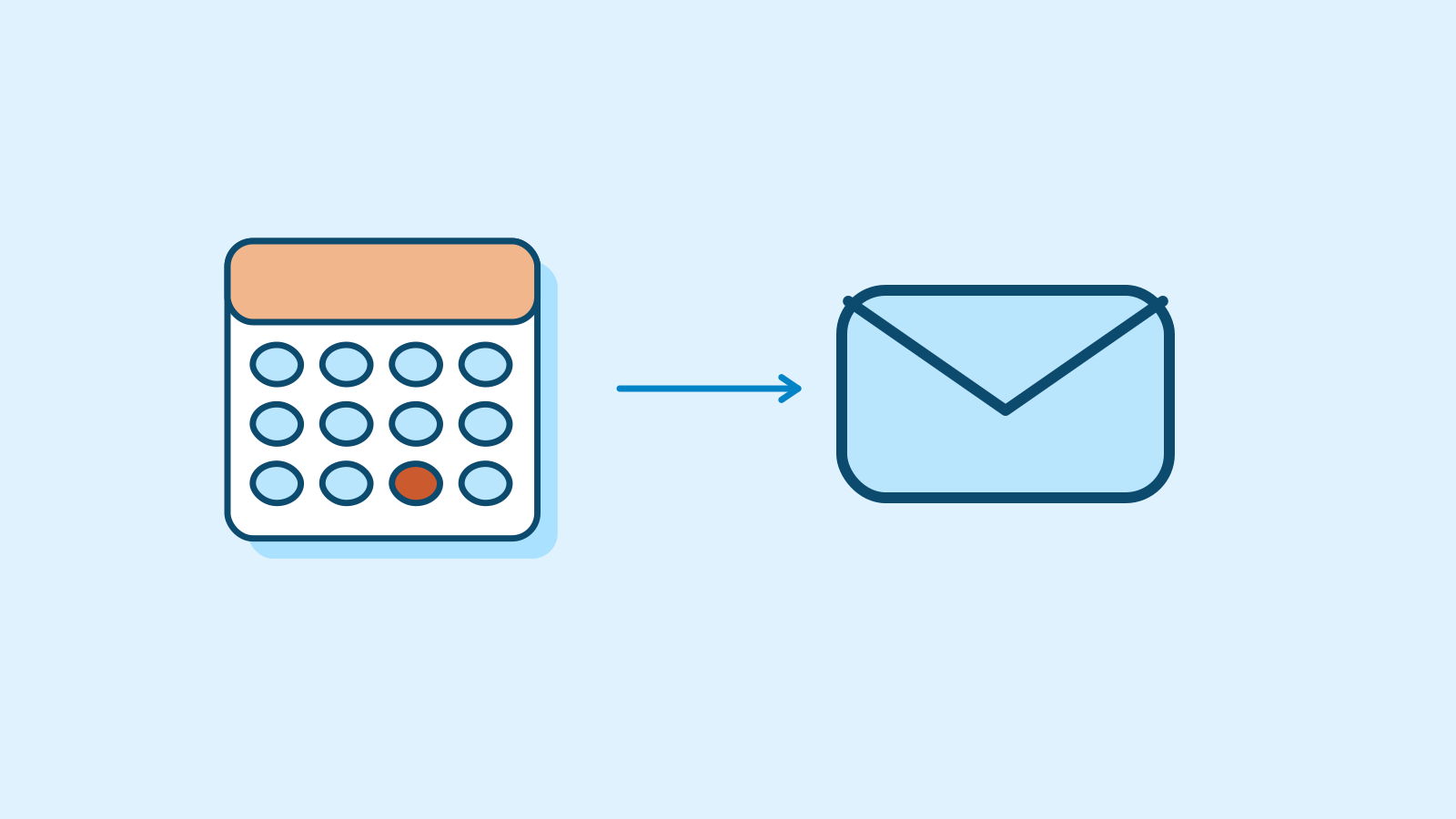
Illustration: A separate correction invites existing bookers to confirm the new date · AI Ping Before sending, read the correction as the reader would. Three things should surface in order: which event this is (the old date names it), the new date, and what you must do. Put the old date first and a booker thinks, that is my reservation; show only the new one and they wonder if it concerns them. Also open the banner and booking page and scan for any leftover old date.
Correction pack for approval before release Where / action Copy for approval Replace banner 25 May bookbinding · book ahead Update booking page Adult bookbinding, 25 May at 14:00. KRW 18,000 including materials; advance booking, one seat each. New email to existing bookers [Date correction] Your 18 May workshop has moved to 25 May at 14:00. The fee is unchanged. Please reply to this email with your availability so we can confirm your seat.
3 / 4
Self-check
Think about what you would ask AI, then read the explanation. Written submissions and external AI use are optional.
This is a learning check, not a test you must pass. Use the explanations to understand the ideas.
Q1Write the V2 correction for existing bookers.
Write your thoughts (optional)
Your writing is not sent anywhere. It disappears when you leave or reload this page, so copy anything you want to keep.
Read the answer and explanation
“Your 9 June, 19:00 class has moved from Room A to Room B. Your seat is retained and no reply is needed.” Both statements follow V2.
This is your own review, not an automatic score.
Q2How should the team handle the unfinished sign?
Write your thoughts (optional)
Your writing is not sent anywhere. It disappears when you leave or reload this page, so copy anything you want to keep.
Read the answer and explanation
Update the production file to Room B and check the proof before installation. No one has received the sign, so it needs no separate correction.
This is your own review, not an automatic score.
Q3Should the notice say “Room B is upstairs”?
Write your thoughts (optional)
Your writing is not sent anywhere. It disappears when you leave or reload this page, so copy anything you want to keep.
Read the answer and explanation
V2 supplies no floor. Publish the confirmed room name and obtain directions before adding a floor.
This is your own review, not an automatic score.
Common mistakes
- An accurate new date does not authorise a seat transfer.
- A drafted correction is not a delivered correction.
Your learning record
Completion is optional. Mark this lesson when you feel ready, or move to the next lesson without marking it.
Completion is saved in this browser.
4 / 4
Apply to your work
Consider how new material changes the workflow and checking criteria. Trying an external AI tool is optional.
Try an evening class that changes rooms
The evening lighting class keeps its date and its seats but moves rooms. Prepare separate actions for the homepage, delivered email and uninstalled sign. Check whether the old workshop’s reply requirement slipped into the new copy.
Here the date and seat both hold, so you might wonder whether any notice is needed. But a booker decides with their feet which room to enter that evening. A change needing no reply still needs announcing, or someone walks to the wrong door. Ask two questions apart: what changed, and does the reader have anything to do? Read your draft alone: does it point somewhere clear? Then write each surface from this record, not a copied answer.
Lighting class change V1 → V2 Record Contents V1 9 June at 19:00, Room A. Email already sent to bookers. V2 Move to Room B at the same time and date. Seats carry over; no reply needed. State The homepage is live. The on-site sign is still in production.
Write a note (optional)
Use this only if you want to record a prompt or your understanding. This is a notebook, not a connected AI assistant.
Your writing is not sent anywhere. It disappears when you leave or reload this page, so copy anything you want to keep.